
Connect Google Calendar or Outlook
Connecting your calendar does two things, and you choose how far to go:
- Free/busy. Teammates see when you’re busy while they schedule a meeting, and your status says 📅 In a meeting while you’re in one. Freesbe only sees busy times, never what the meetings are.
- The Calendar app, if you turn it on: a daily agenda, a reminder with the join link before each meeting, and invitations you can answer Yes, Maybe or No without leaving Freesbe.
It works the same way for Google Calendar and for Outlook (Microsoft 365). Using Zoho Calendar? See Connect Zoho Calendar.
1. Connect your calendar
Section titled “1. Connect your calendar”- Open Preferences from your account menu and choose Calendar.
- Click Connect Google Calendar or Connect Microsoft Calendar, and sign in. It can be a different account from the one you use for Freesbe.
- Allow Freesbe to see when you’re busy.
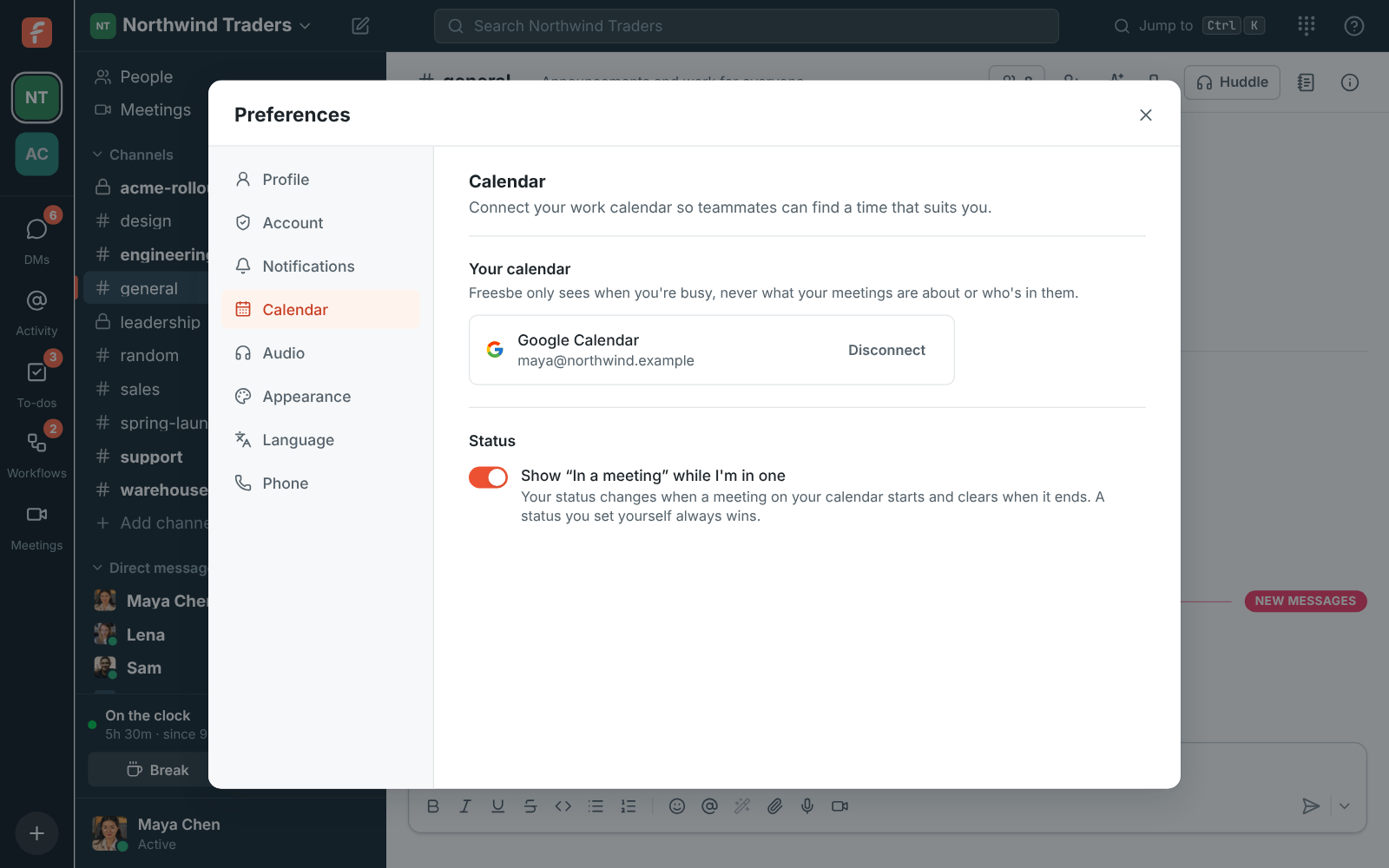
Leave Show “In a meeting” while I’m in one on if you want your status set for you. A status you set yourself always wins.
In the desktop app, Connect opens Freesbe in your web browser; connect there and the app picks it up.
2. Turn on the Calendar app (optional)
Section titled “2. Turn on the Calendar app (optional)”- In Preferences → Notifications → Calendar, under Calendar app, click Turn on the Calendar app.
- Google or Microsoft asks again, this time to let Freesbe see your events and answer invitations. Allow it.
- Pick what you get: the Daily agenda and when it comes (8:00 AM to start with, in your own time zone), Remind me before meetings (1 to 30 minutes, or not at all) and Invitations and changes.
- Click Send today’s agenda now to see what it looks like.
Messages come from 📅 Calendar in your DM with yourself, in the workspace you were in when you turned it on. Only you see them. To move them, open Preferences → Notifications → Calendar in the other workspace and click Send them to … instead.
If something’s wrong
Section titled “If something’s wrong”- Google or Microsoft says an admin must approve Freesbe. Your company’s Microsoft 365 or Google Workspace only allows approved apps. Ask your IT admin to approve Freesbe for your organization.
- The Calendar app stays off. You unticked the permission to see and answer events. Click Turn on the Calendar app again and allow it.
- “Connect your calendar again.” Your calendar stopped accepting Freesbe’s access, for example after a password change. Click Reconnect.
- No agenda this morning. Days with nothing on your calendar get no message, and weekends only get one with On weekends too on.
- Calendar app messages stopped for everyone. An admin may have turned the Calendar app off for the workspace. Ask them to check Workspace settings → Integrations & apps → Integrations → Calendar.
For admins
Section titled “For admins”The Calendar app is on in every workspace to start with. Turn it off, or see how many people use it, in Workspace settings → Integrations & apps → Integrations → Calendar. Guests can’t use it.
Stop it
Section titled “Stop it”Turn off the Calendar app stops the messages and keeps free/busy. Disconnect removes Freesbe’s access to your calendar, and everything the Calendar app remembered.
See Calendar app and Status and availability for more.
Answers come from the Freesbe guides and are written by AI, so check the linked guide before relying on one. Please don't include personal details such as emails or passwords.