
People can't hear me, or I can't hear them
You’re in a huddle or a meeting and there’s no sound one way or the other, Freesbe says there’s a problem with your microphone, or the call never connects.
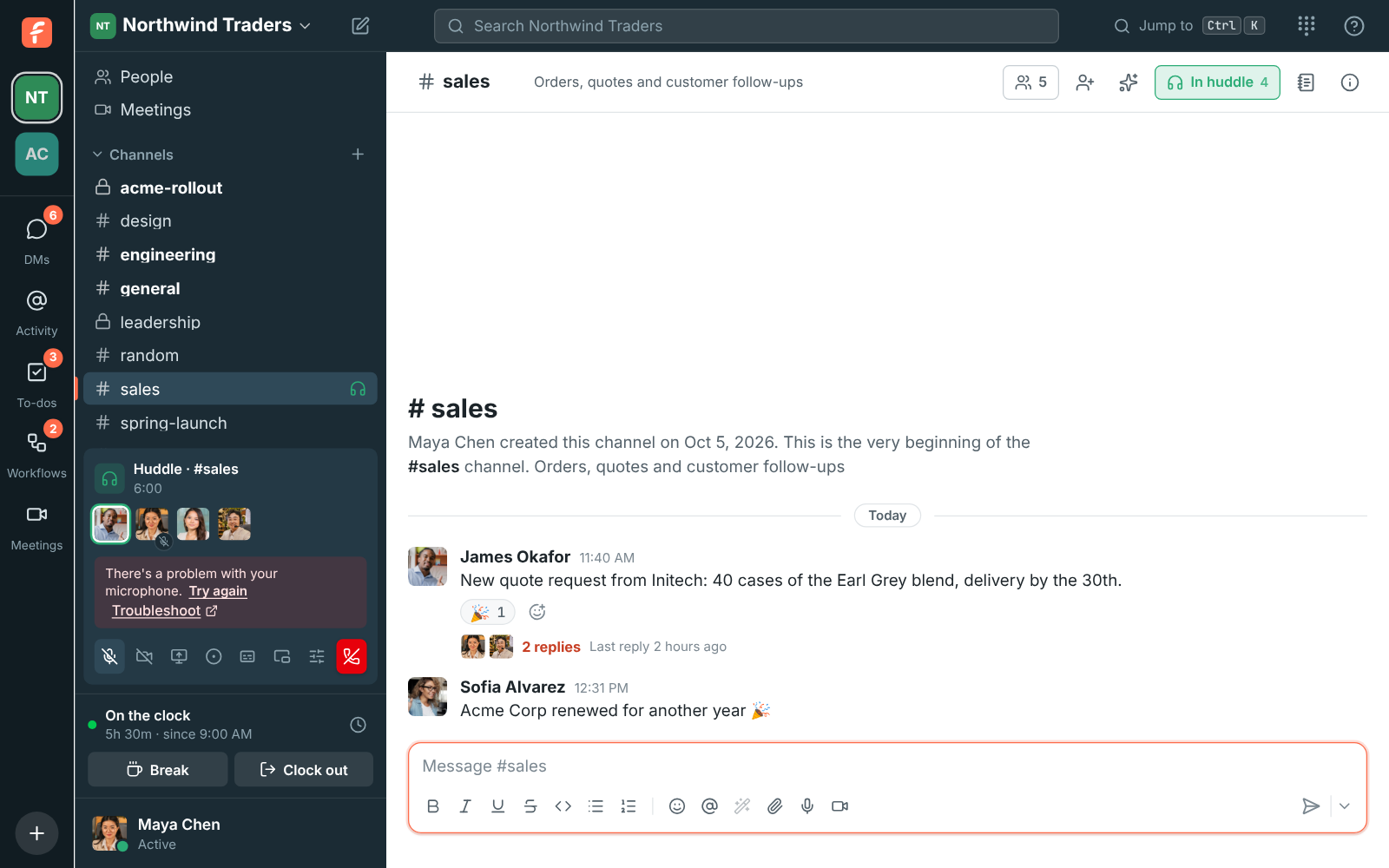
Check your devices
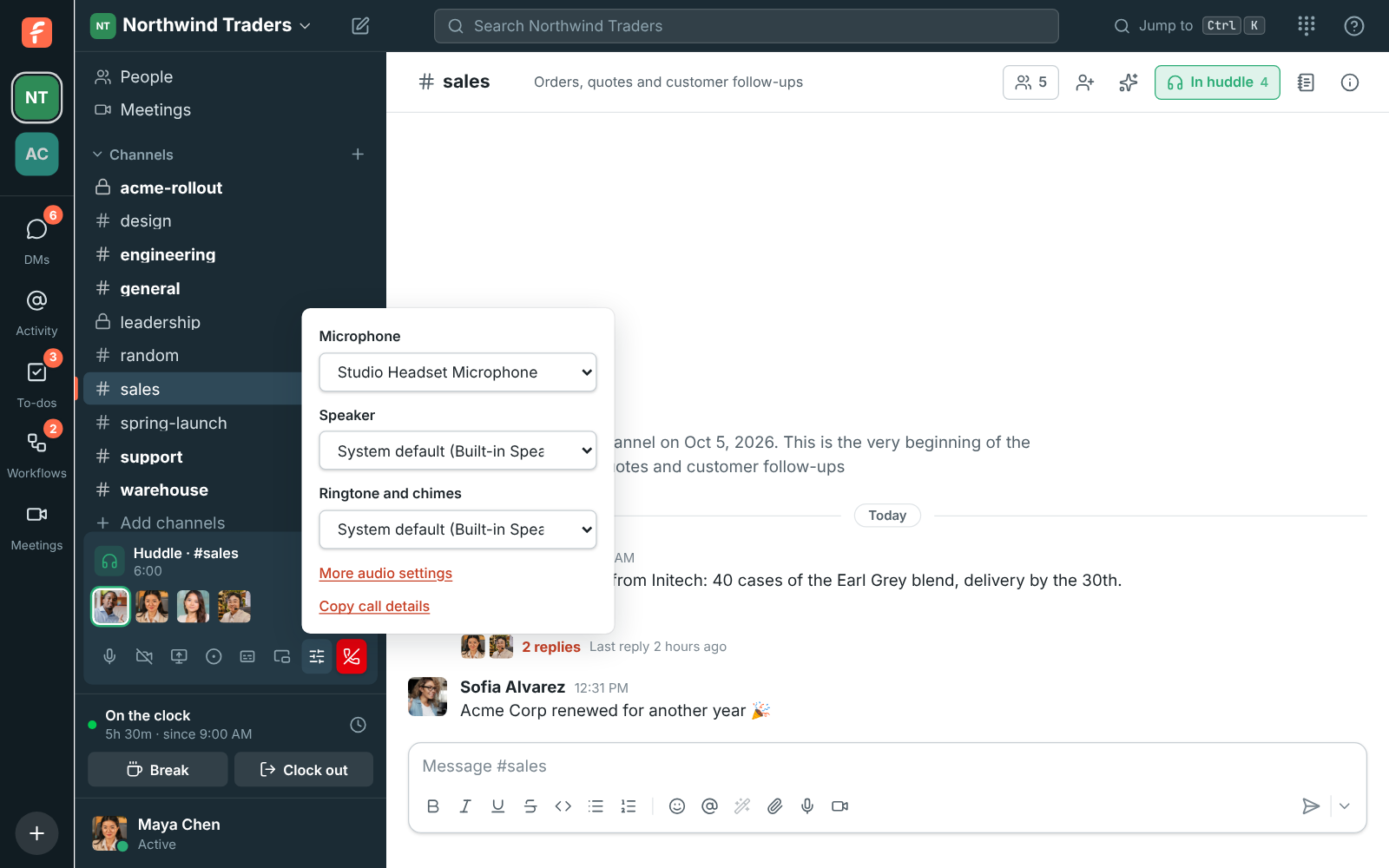
Section titled “Check your devices”- Pick the right microphone and speaker in the call’s Audio and video devices, or test them in Preferences → Calls & audio → Audio.
- Close other apps that might be using the microphone, such as another call.
Allow the microphone
Section titled “Allow the microphone”- In a browser, allow microphone access for app.freesbe.net in the browser’s site settings, then click Try again.
- On a Mac with the desktop app, allow Freesbe under System Settings → Privacy & Security → Microphone. Allow Camera for video and Screen & System Audio Recording to share your screen, then reopen Freesbe. See Permissions on macOS.
If they can’t hear you, but your name lights up
Section titled “If they can’t hear you, but your name lights up”The ring around your name shows that your microphone hears you. If the others still hear nothing, wait about 10 seconds while you keep talking: Freesbe checks that your voice actually leaves your computer and repairs it when it doesn’t. With Advanced AI noise cancellation on, it switches to Standard for the rest of the call and says The others couldn’t hear you, so noise cancellation switched to Standard for this call. If it happens again, set Noise cancellation to Standard in Preferences → Calls & audio → Audio and send call details (below).
If the call won’t connect
Section titled “If the call won’t connect”On strict office networks, calls go through a relay automatically. If you still can’t connect, try another network, or ask your IT team to allow WebRTC traffic.
If the connection drops for a moment, the call shows Reconnecting and keeps trying for up to 30 seconds, so you don’t have to leave and join again. A VPN turning on or off mid-call reconnects by itself too.
If someone keeps cutting out
Section titled “If someone keeps cutting out”A small signal icon next to someone’s name means their connection is weak: their sound reaches you with gaps. If the icon is on your own face or tile, it’s your connection. Move closer to the Wi-Fi, use a cable, or pause big downloads and other video calls. See Call quality.
Send call details to whoever is helping
Section titled “Send call details to whoever is helping”If one person can’t hear another, both of them open Audio and video devices in the call and click Copy call details. It copies what each app is sending and receiving: whose audio arrives, how much, and any errors from the call server. Paste both into a message to your admin or to support@freesbe.net. Together they show exactly where the sound stops. If someone has already left the call, tell support which huddle or meeting it was and when: each app saves these details as it leaves, for 90 days.
Answers come from the Freesbe guides and are written by AI, so check the linked guide before relying on one. Please don't include personal details such as emails or passwords.