
Channels, DMs and messages
Channels
Section titled “Channels”Channels are where conversations around a topic happen.
- Public channels can be found and joined by anyone in the workspace (but not by guests).
- Private channels are only visible to the people in them. A lock icon marks them.
Find and join a channel
Section titled “Find and join a channel”Click + next to Channels in the sidebar and choose Browse channels. Search by name or topic, then click a channel to look inside or Join it. Tick Include archived channels to see old ones.
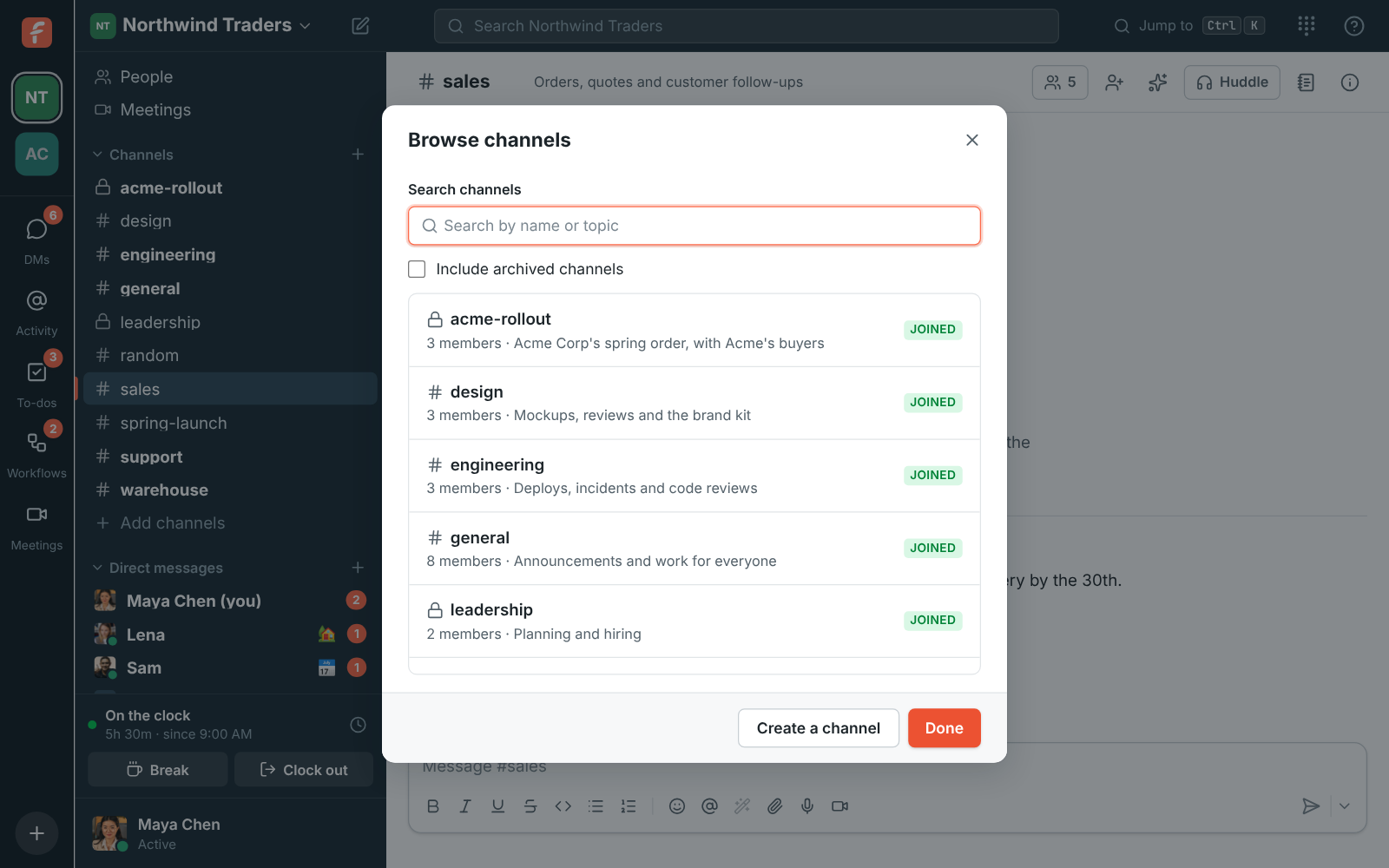
You can also read a public channel without joining it; the message box offers to join when you want to post.
Create a channel
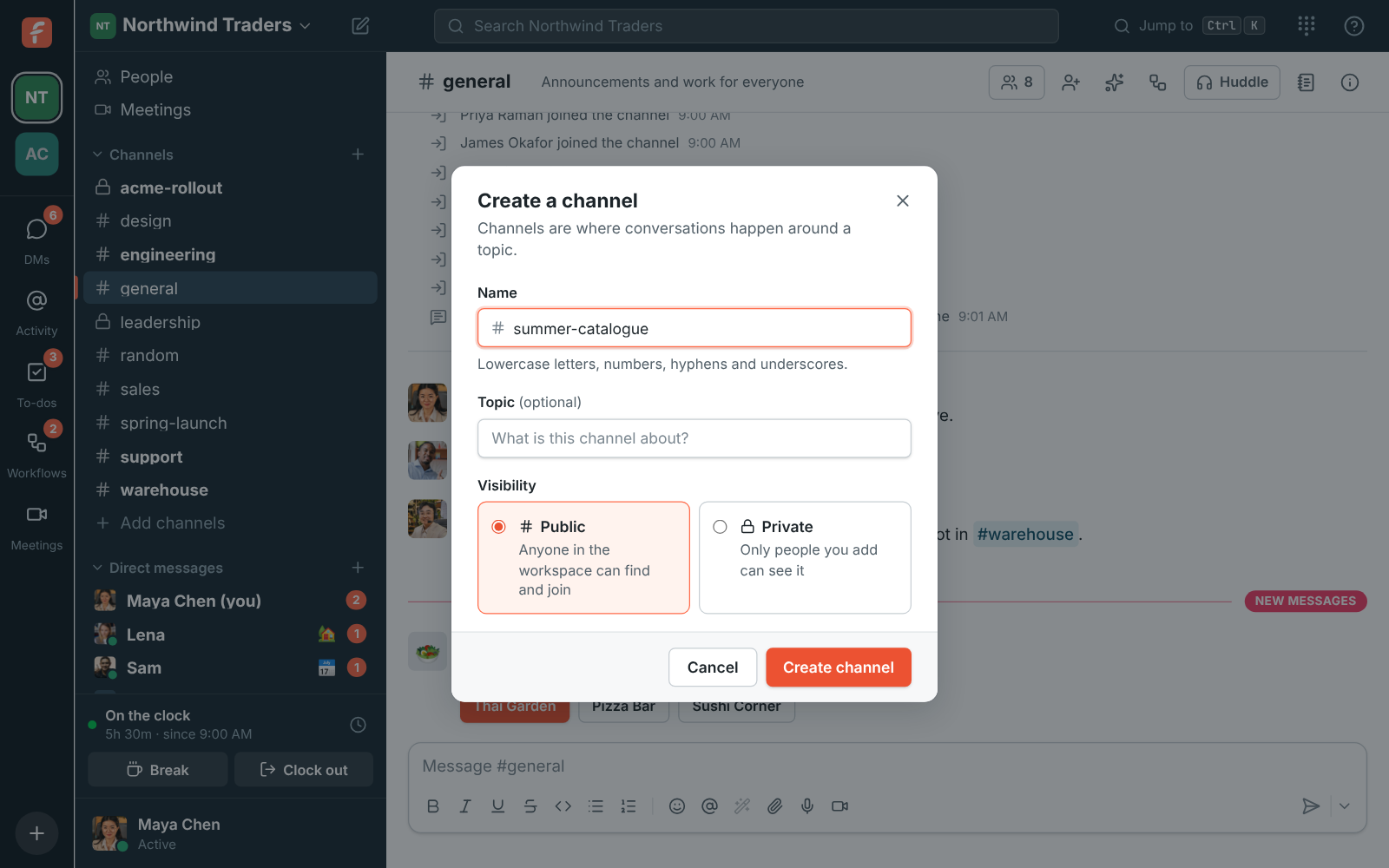
Section titled “Create a channel”- Click + next to Channels, then Create a channel.
- Give it a name. Names use lowercase letters, numbers, hyphens and underscores, up to 80
characters, and must be unique. Freesbe turns “Q3 Launch!” into
q3-launchfor you. - Add a topic if you like, and choose Public or Private.
Channel details
Section titled “Channel details”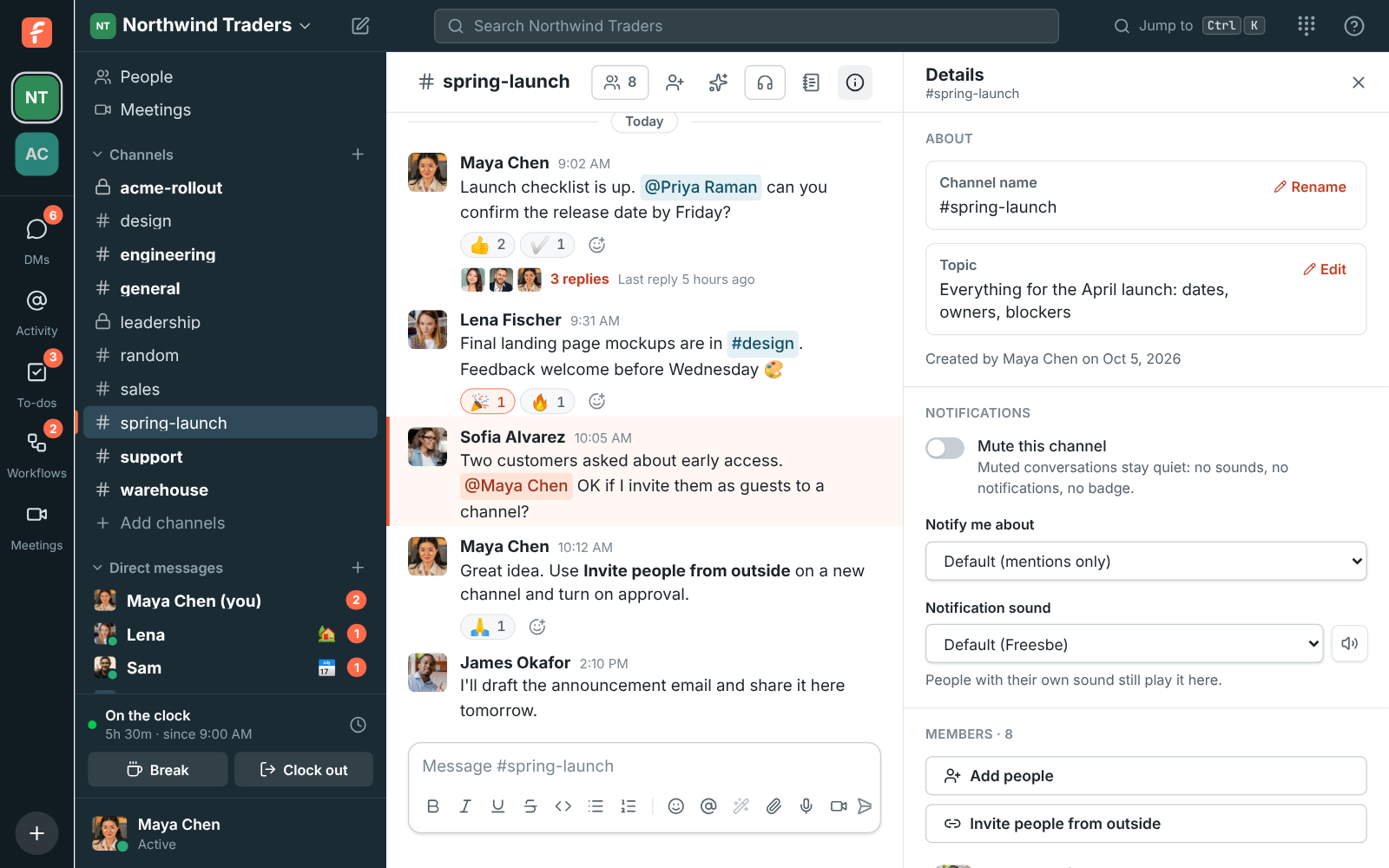
Click the channel name at the top to open its details. There you can:
- Change its Topic. Admins and whoever created the channel can also Rename it.
- See and add Members. Admins and the channel’s creator can remove people.
- Choose Notifications for this channel, or mute it. See Notifications.
- Leave channel. You can rejoin a public channel any time from Browse channels; to get back into a private one, someone in it has to add you again.
- Archive channel, if you’re an admin or created it. Nobody can post in an archived channel, and it can be unarchived later.
The workspace’s general channel includes everyone, so it can’t be left, renamed or archived.
Sidebar sections
Section titled “Sidebar sections”Group channels and direct messages your way, such as Customers or Launch, in sections of your own above Channels and Direct messages. Only you see your sections, and they’re the same on all your devices.
- To make one, click + next to Channels and choose Create a section. Give it a name and, if you like, an emoji.
- To move a conversation, right-click it in the sidebar or point at it and click ⋯, then pick a section under Move to. New section… makes a section and moves it there in one go. The same menu marks the conversation read, mutes it, copies a link to it, opens its notification settings or leaves it. See Right-click menus.
- Click a section’s name to fold it; folded sections still show conversations with something new.
- A section’s ⋯ menu renames it, moves it up or down, or deletes it. Deleting a section puts its conversations back under Channels and Direct messages; you don’t leave any of them.
Resize the sidebar and side panel
Section titled “Resize the sidebar and side panel”Drag the divider between the sidebar and the conversation to make the sidebar wider or narrower, the same way you would in Slack. The divider on the side panel (a thread, channel details, a canvas, pins, files, a profile or search results) works the same, so you can give a thread more room.
- Point at the edge of the sidebar or the side panel: a line shows, and the pointer becomes a resize arrow. Drag it.
- Double-click the divider to go back to the default width.
- With a keyboard, press Tab until the divider is focused, then use the arrow keys (hold Shift for bigger steps). Home and End jump to the narrowest and widest, and Enter resets it.
- Freesbe remembers the widths on each computer and browser, in the web app and the desktop app. A canvas keeps its own width, since a document usually wants more room.
- The conversation always keeps enough room to read, so a divider stops when it gets too close. On small screens, where the sidebar and side panel slide over the conversation, they keep their fixed widths.
Direct messages
Section titled “Direct messages”Direct messages (DMs) are private conversations outside channels.
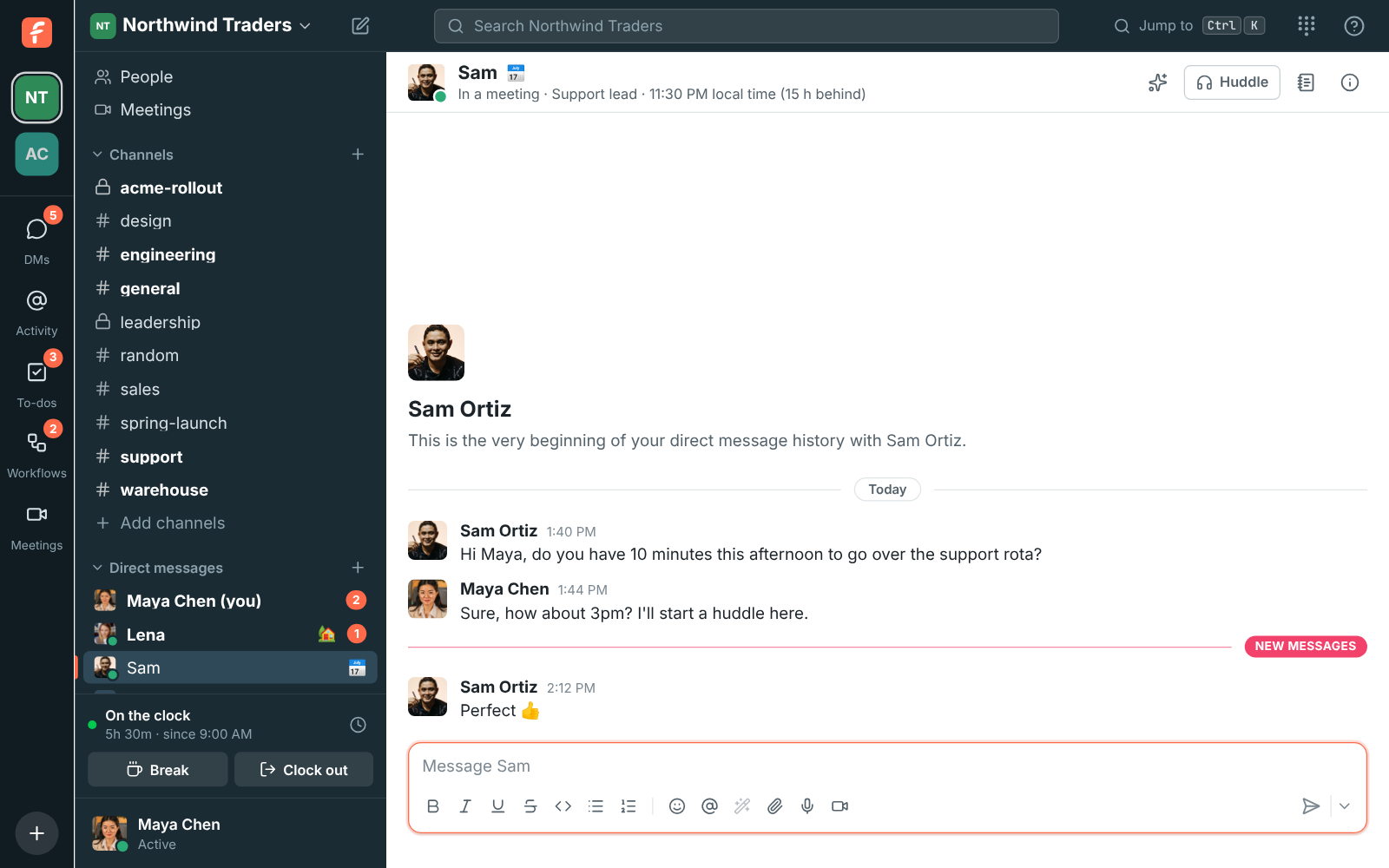
- Click New message next to Direct messages (or the pencil icon by the workspace name).
- Pick up to 8 people. A DM with 2 or more others is a group DM.
- Click Start conversation.
Opening a DM with the same people again takes you back to the same conversation. Pick only yourself to get a private notes space.
See who’s in a DM
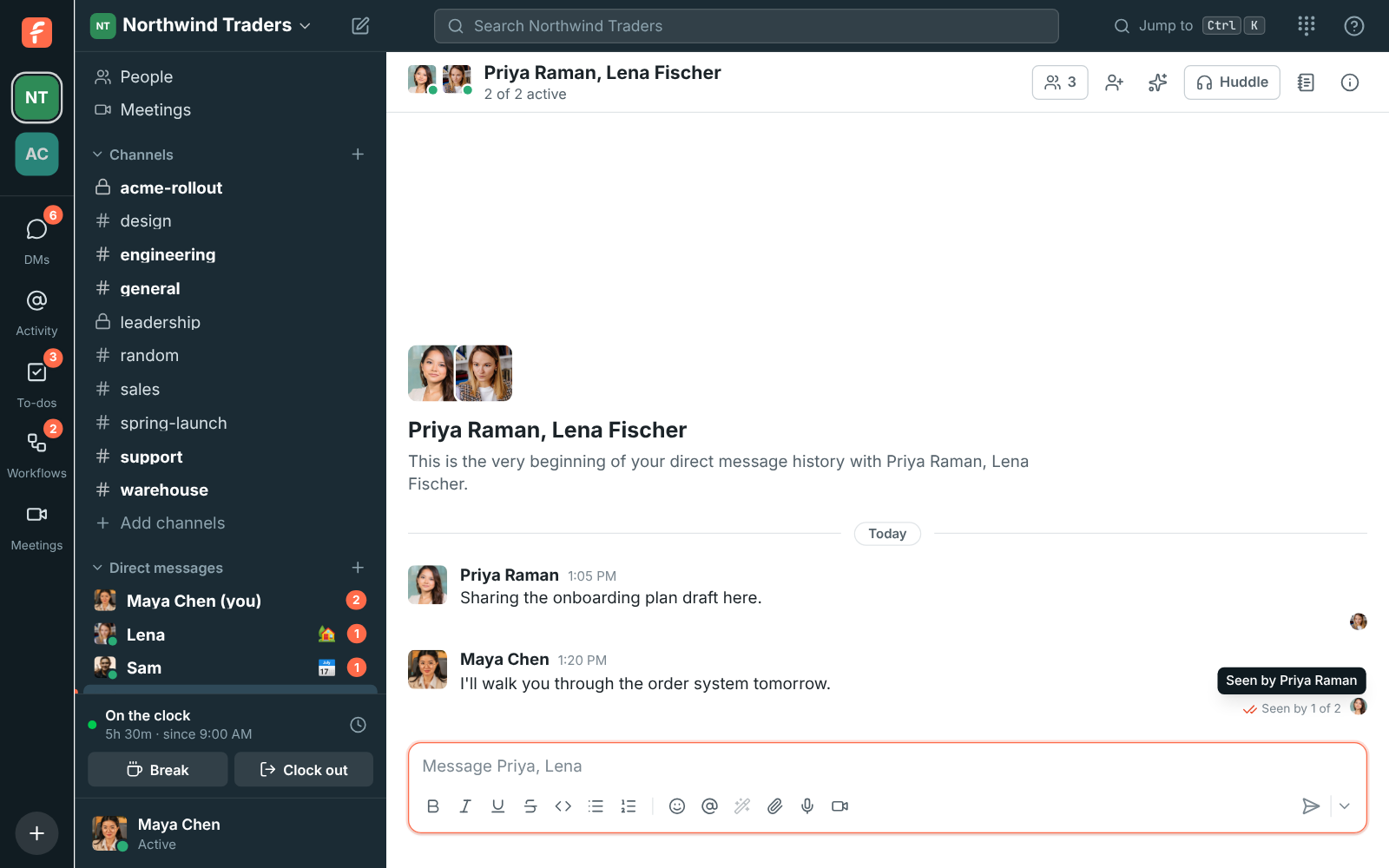
Section titled “See who’s in a DM”The top of a group DM shows everyone’s picture with a green dot for whoever is active, and how many of them are active right now. In the sidebar, the group’s people count gets a green dot while anyone else in it is active.
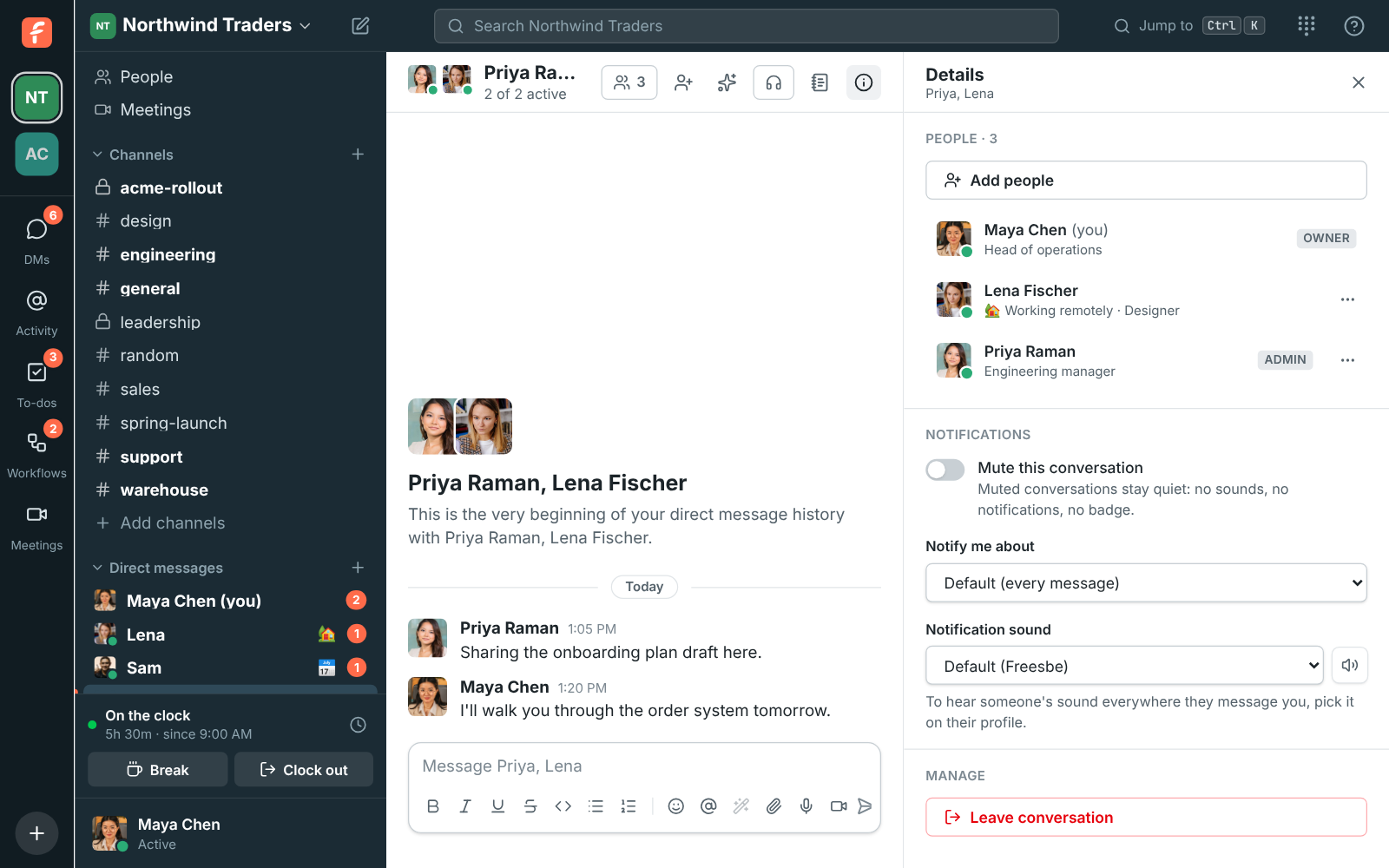
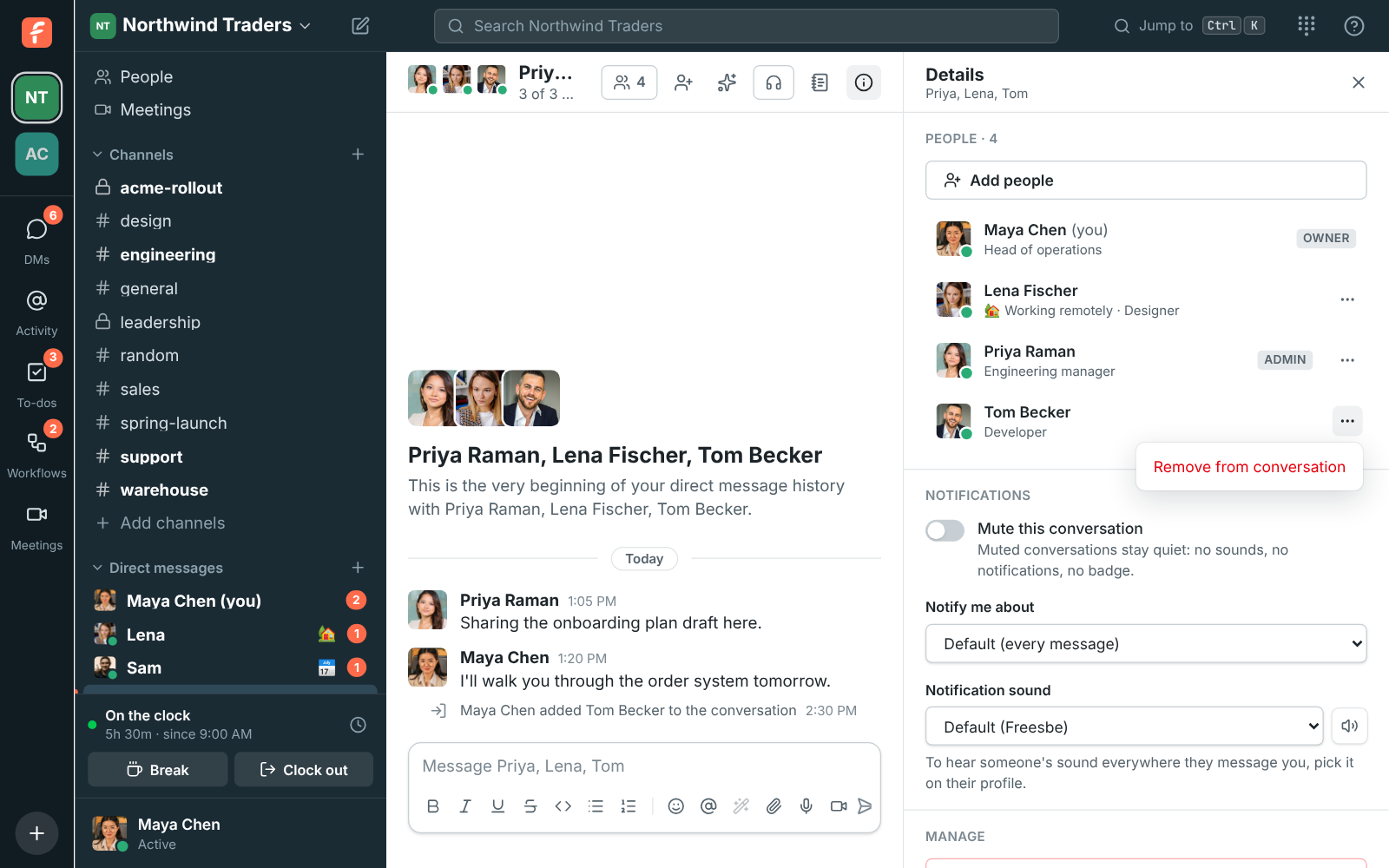
Click the names, the people count next to them, or Show details (the ⓘ button) to open the details. People lists everyone in the conversation with their status, job title, whether they’re active, and their role in the workspace.
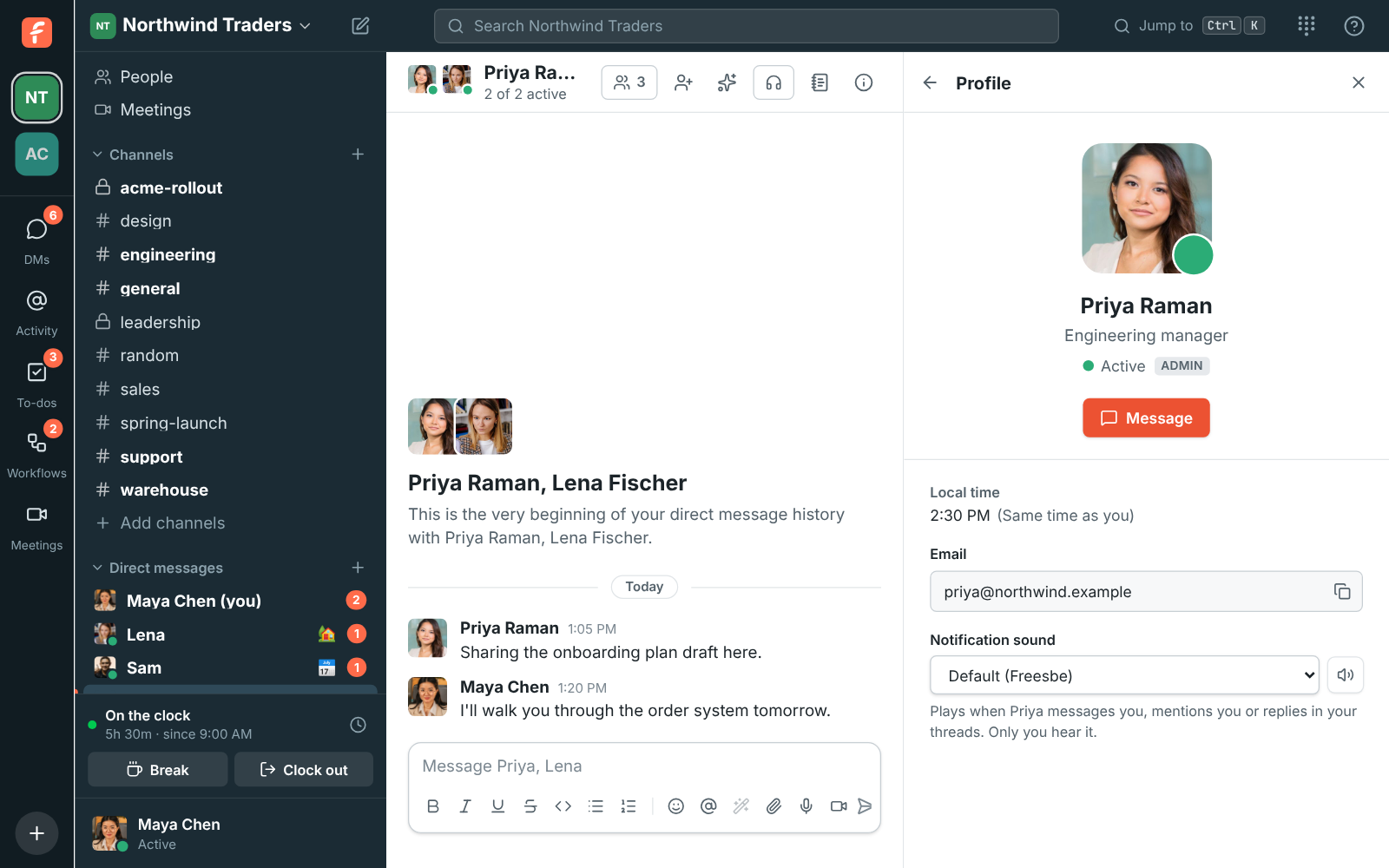
Click anyone to open their full profile: local time, email, status and a button to message them directly. The back arrow at the top takes you back to the conversation’s details.
Group DMs
Section titled “Group DMs”A group DM is a DM with three or more people, you included. Anyone in it can change who’s in it, except guests.
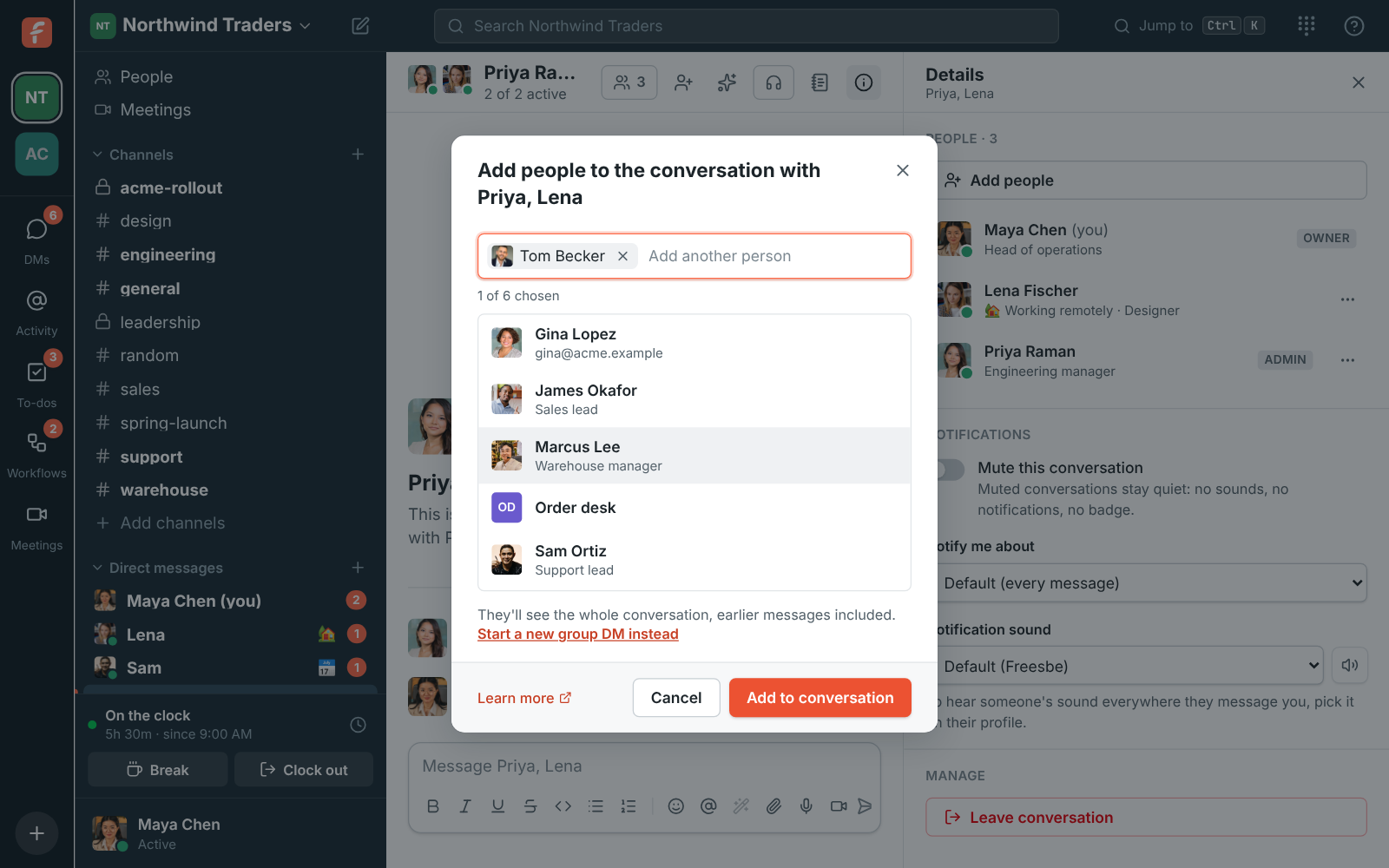
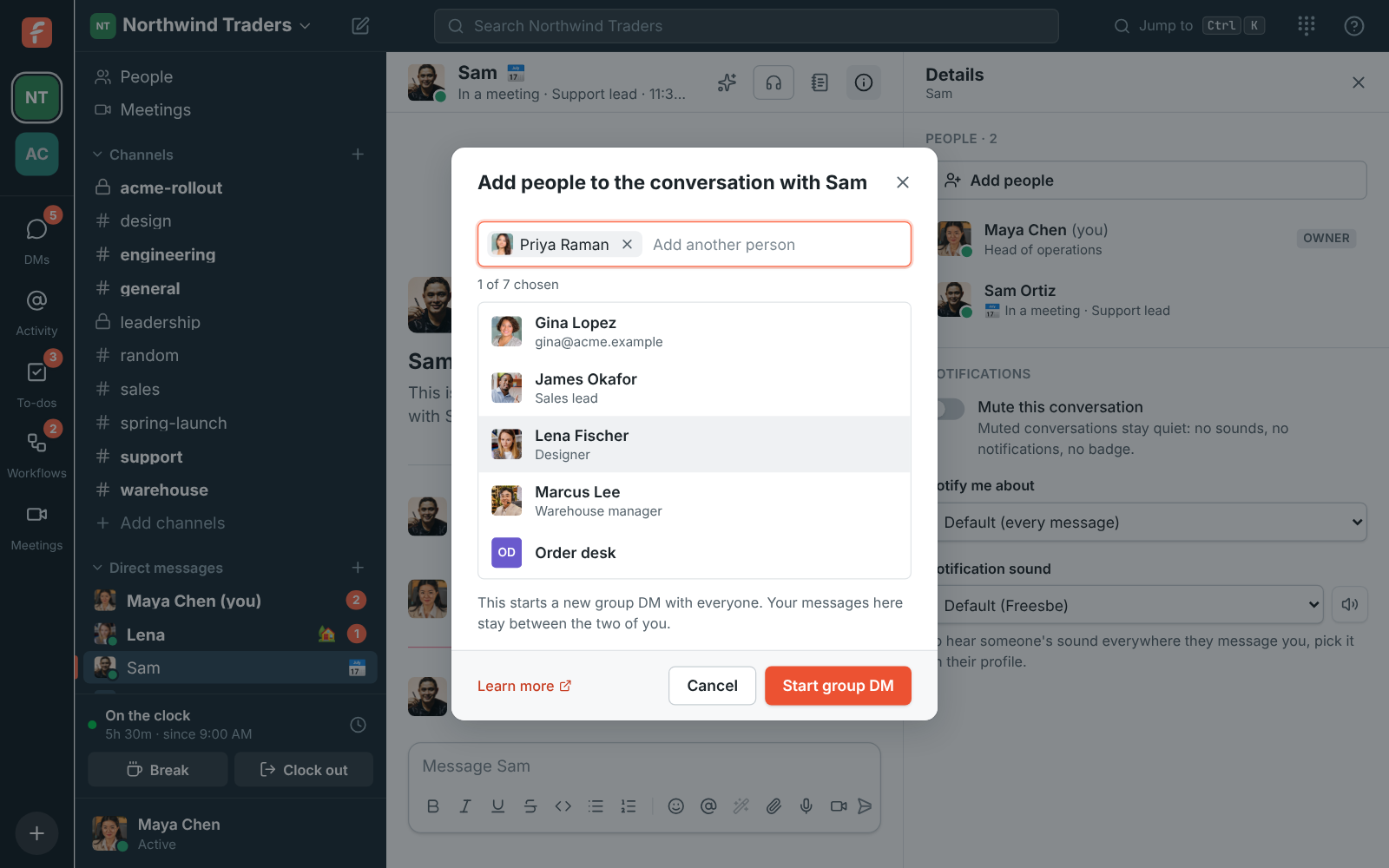
Add people. Click the add-person button at the top of the conversation, or Add people in its details, then pick who to add (a DM holds up to 9 people). The people you add see the whole conversation, including messages sent before they joined. If those earlier messages should stay private, click Start a new group DM instead: Freesbe opens a separate conversation with everyone, and the original stays as it was.
Everyone sees a note in the conversation saying who was added and by whom.
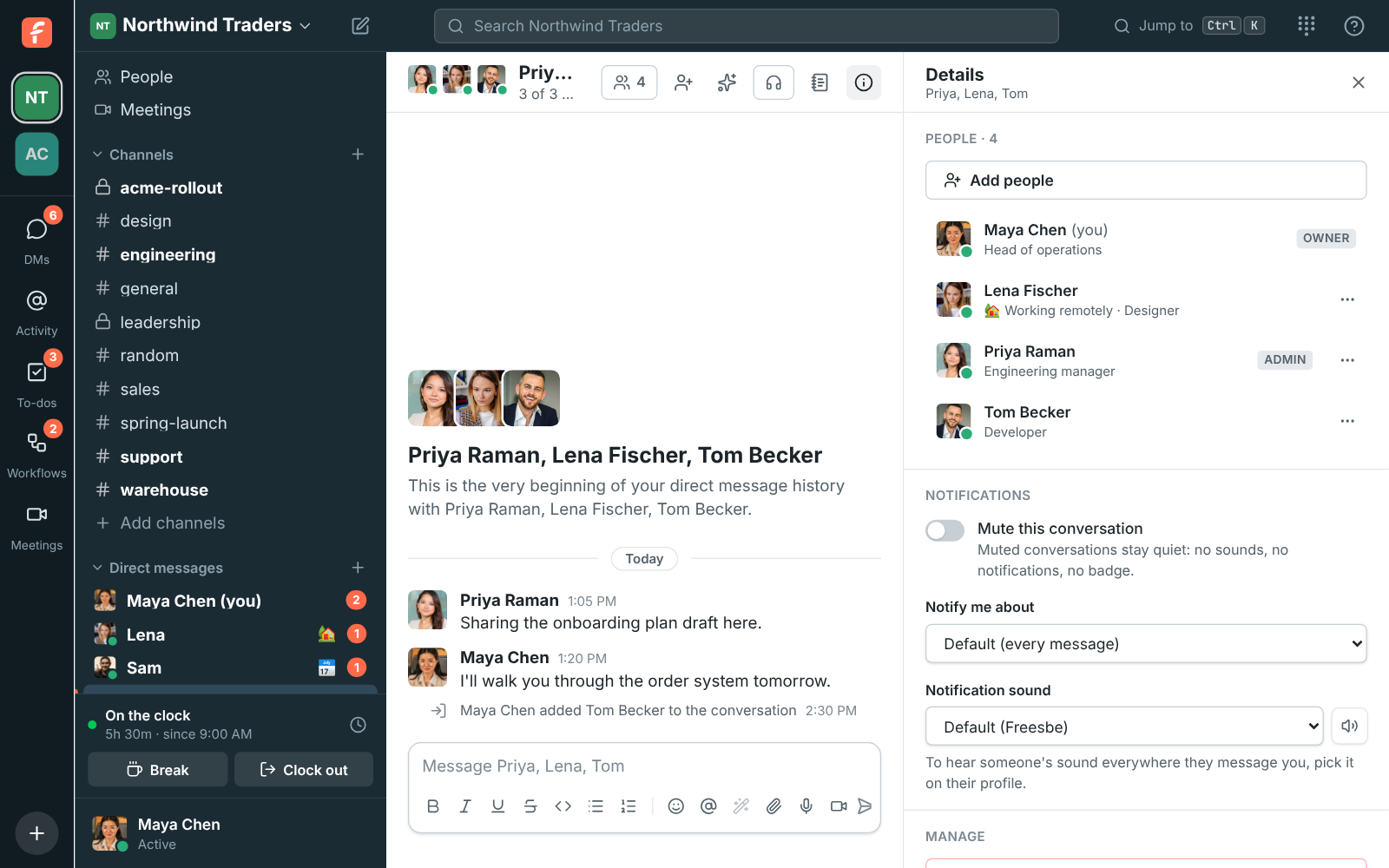
Remove someone. In the details, click … next to the person and choose Remove from conversation. They lose access to the conversation and its messages right away, and everyone still in it sees a note.
Leave. Click Leave conversation at the bottom of the details. You won’t see new messages unless someone in it adds you back.
A 1:1 DM always stays between its two people, so you can’t leave it or remove the other person. Adding someone to a 1:1 DM starts a new group DM with all of you instead, and your 1:1 messages stay where they are.
Opening a DM with exactly the same people takes you to the group that has them, even after its people changed.
Sending messages
Section titled “Sending messages”Type in the box at the bottom and press Enter. Shift+Enter adds a new line. A message can be up to 40,000 characters. Anything you type and don’t send is kept as a draft, on all your devices. See Drafts.
Mentions
Section titled “Mentions”- Type
@and a name to mention someone. They get a notification. @here,@channeland@everyonenotify everyone in the channel. Use them sparingly.- Type
#to link a channel, and:to search for an emoji, such as:tada:.
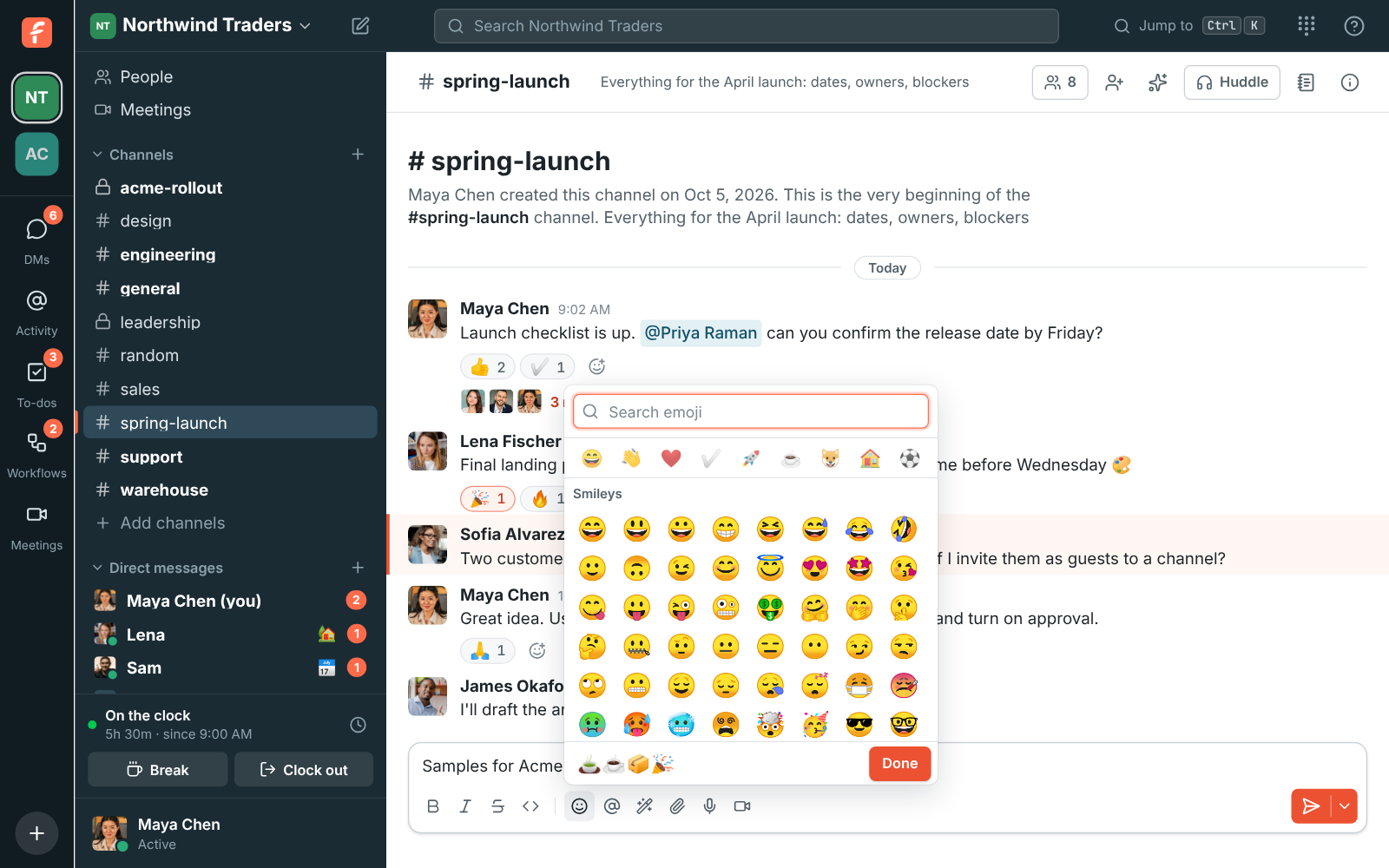
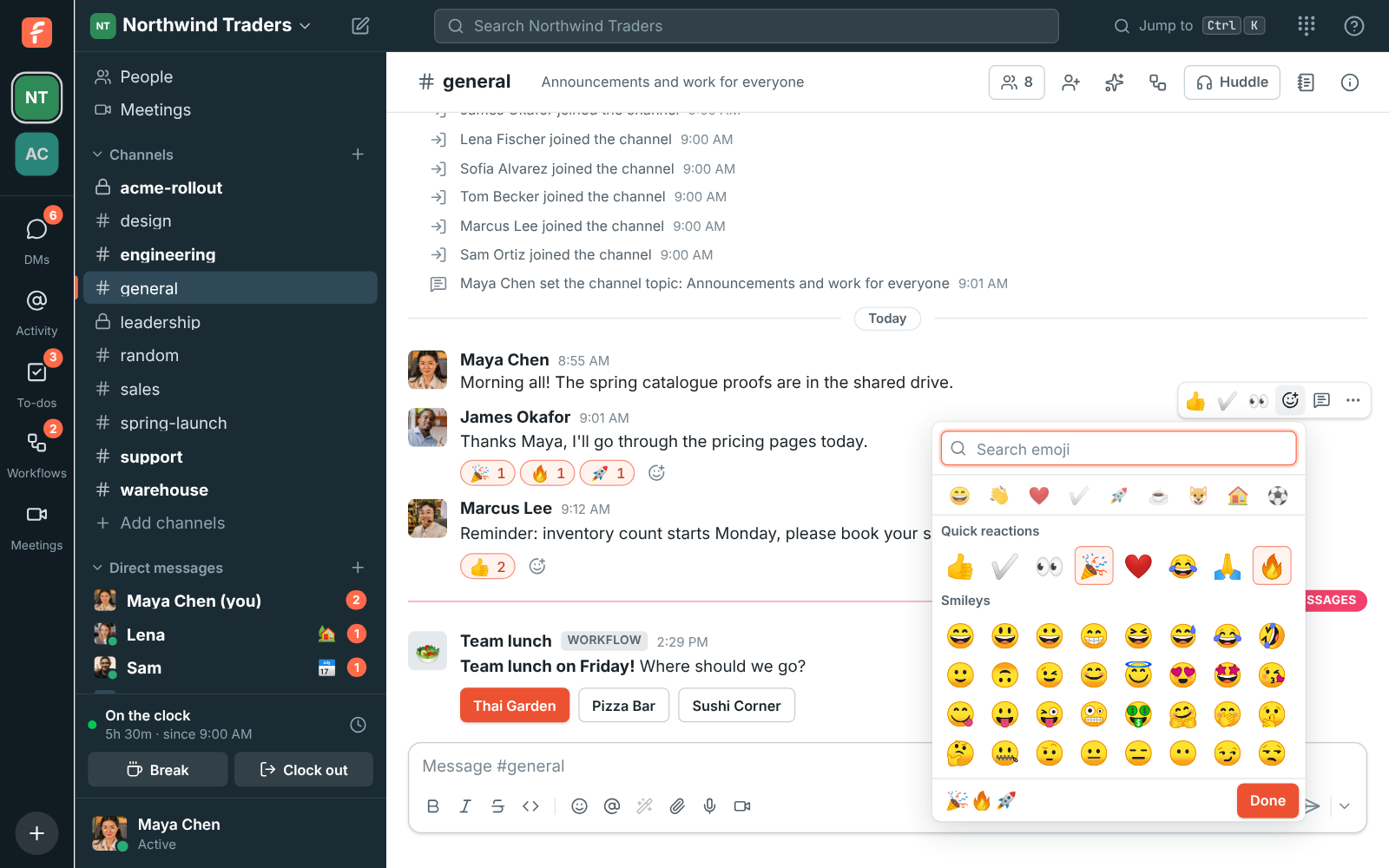
Click the smiley under the message box to open the emoji picker. It stays open, so you can pick as many emoji as you like in one go: each one goes into your message where the cursor is, and the bottom of the picker shows what you’ve added so far. Search, press Enter to add the first match, and type the next search straight away. Click Done, press Esc or click anywhere outside the picker when you’re finished.
Link previews
Section titled “Link previews”When you send a message with a link to a web page, Freesbe shows a preview under it a moment later: the site, the page’s title and description, and its picture. A link straight to a picture shows the picture. Up to three links in a message get a preview.
To remove a preview from your own message, point at it and click ×. It stays gone, even if you
edit the message. Links inside code, and links an app shows its own way, such as HubSpot, Zendesk or Zoho Desk links, get no preview.
Freesbe fetches the page and its picture itself, so the site doesn’t learn who in your workspace is reading.
Custom emoji
Section titled “Custom emoji”Add your logo, your team’s faces or an inside joke as an emoji everyone in the workspace can use.
Open the emoji picker and click Add emoji, choose a PNG, JPEG, GIF or WebP picture, give it a
name such as northwind_logo and click Add emoji. Pictures are shrunk to fit; a small animated
GIF keeps moving.
Custom emoji are in the picker under Custom, come up first when you type : and their name in
a message, and work as reactions. Guests can use them but not add them. A workspace can have up to 500.
You can remove the ones you added from the same window. Owners and admins can remove any of them in Workspace settings → General → Messages → Custom emoji. Messages and reactions that used a removed emoji show its name instead.
Formatting
Section titled “Formatting”Use the buttons under the message box, or type the markers yourself:
| You type | You get | Shortcut |
|---|---|---|
*bold* |
bold | Ctrl+B |
_italic_ |
italic | Ctrl+I |
__underline__ |
underline | Ctrl+U |
~strike~ |
Ctrl+Shift+X | |
`code` |
code |
Ctrl+Shift+C |
On a Mac, use ⌘ instead of Ctrl. Links are detected automatically.
When the message box is narrow, as in a thread, the formatting buttons tuck away so everything fits on one row: click Aa to show them in a bar above what you’re typing, and again to hide them. Freesbe remembers which you chose.
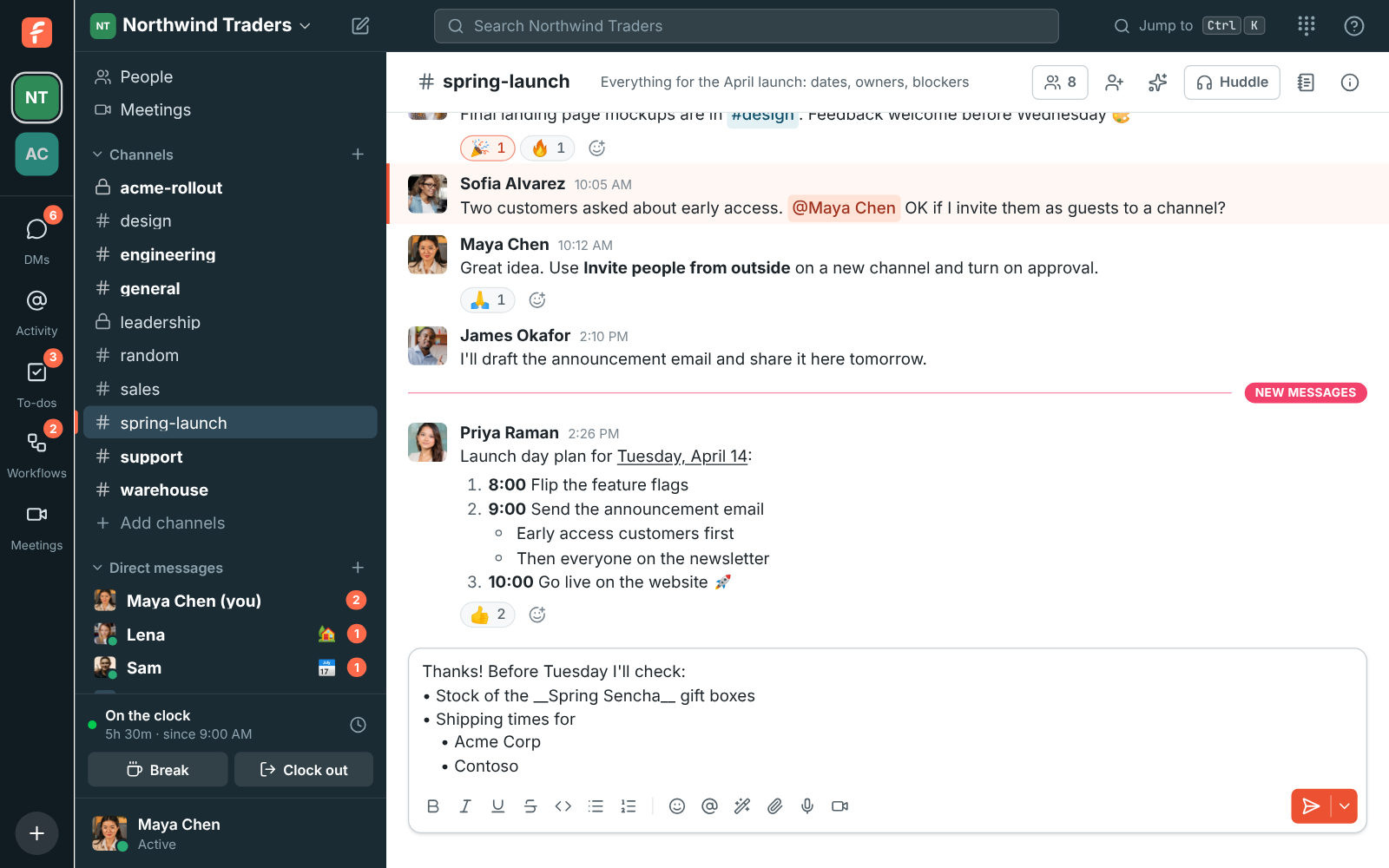
Start a line with - (it turns into a bullet as you type) or 1. for a numbered list, or use
the list buttons: Ctrl+Shift+8 for bullets and
Ctrl+Shift+7 for numbers. They work on every line you’ve
selected, and pressing the same one again turns the list back into plain lines.
- Shift+Enter starts the next item, numbered for you. Enter still sends the message.
- Tab nests the item under the one above, and Shift+Tab moves it back out. Nested bullets and numbers get their own style, like in a document.
- Shift+Enter on an empty item ends the list.
Lists you copy from Word, Google Docs, Outlook, Notion, Slack or a web page paste in as lists,
with their nesting: bullets become • and numbers 1. , ready to edit like any other list.
Pasting into a code block leaves the text exactly as it was copied.
Lists and underlines show in the desktop app and the phone app too. On a
phone, type - or 1. and each new line carries the list on.
Click the paperclip, drag files onto the conversation, or paste them. You can attach up to 10 files to a message, each up to 50 MB.
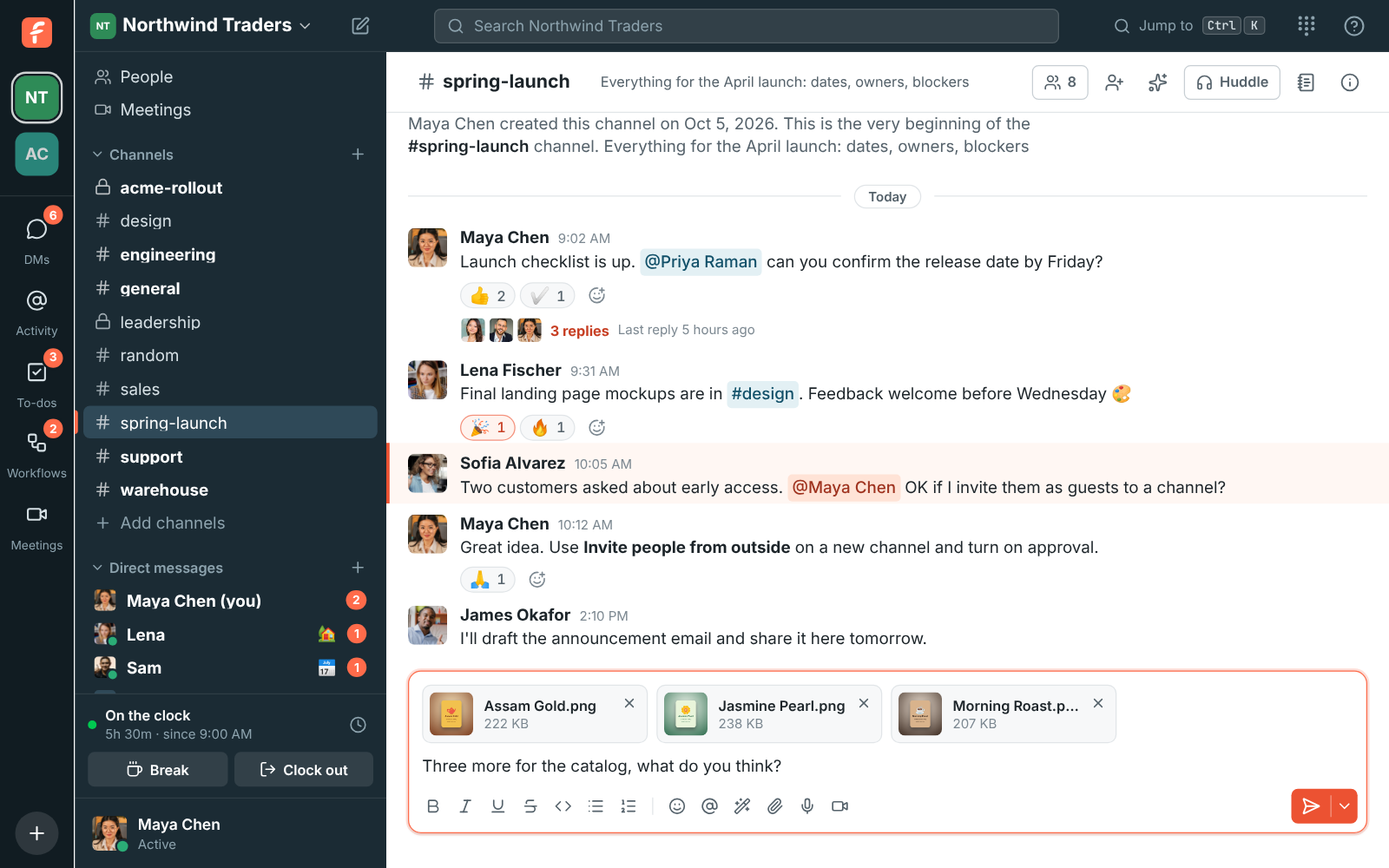
To send several pictures in one message, pick them together in the paperclip’s file picker (hold Ctrl or Shift, or ⌘ on a Mac), drop them all at once, or paste one after another: each paste adds to what’s already waiting above the message box. Pasted screenshots get a name with the time, like “Pasted image 2026-10-23 14.30.05.png”, so you can tell them apart. You can paste while looking at the conversation too, not just in the message box. Take one out with its × before you send.
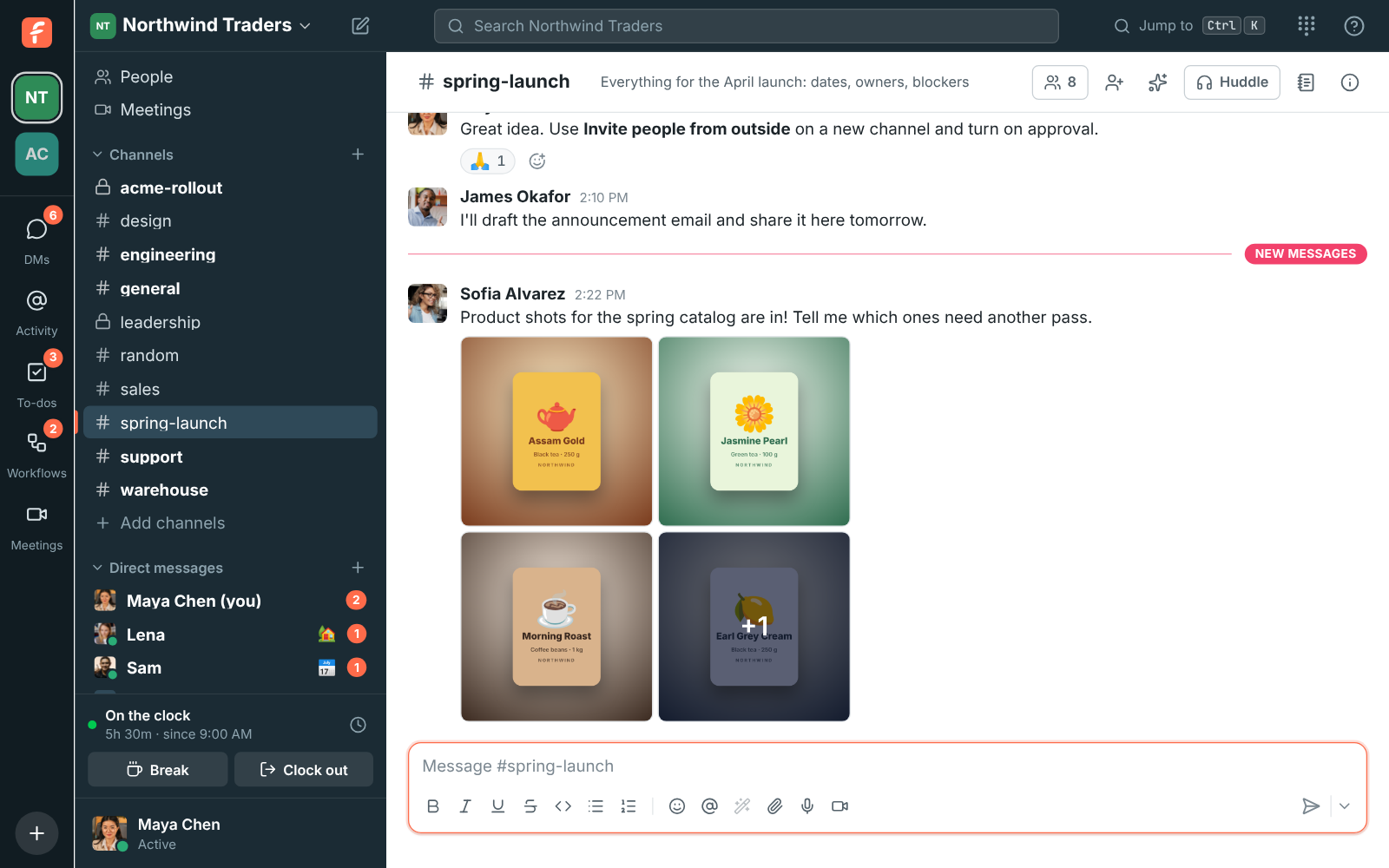
Several pictures in one message show as a gallery of up to four tiles; a +N on the last tile says how many more there are. Click any tile to open the pictures full size.
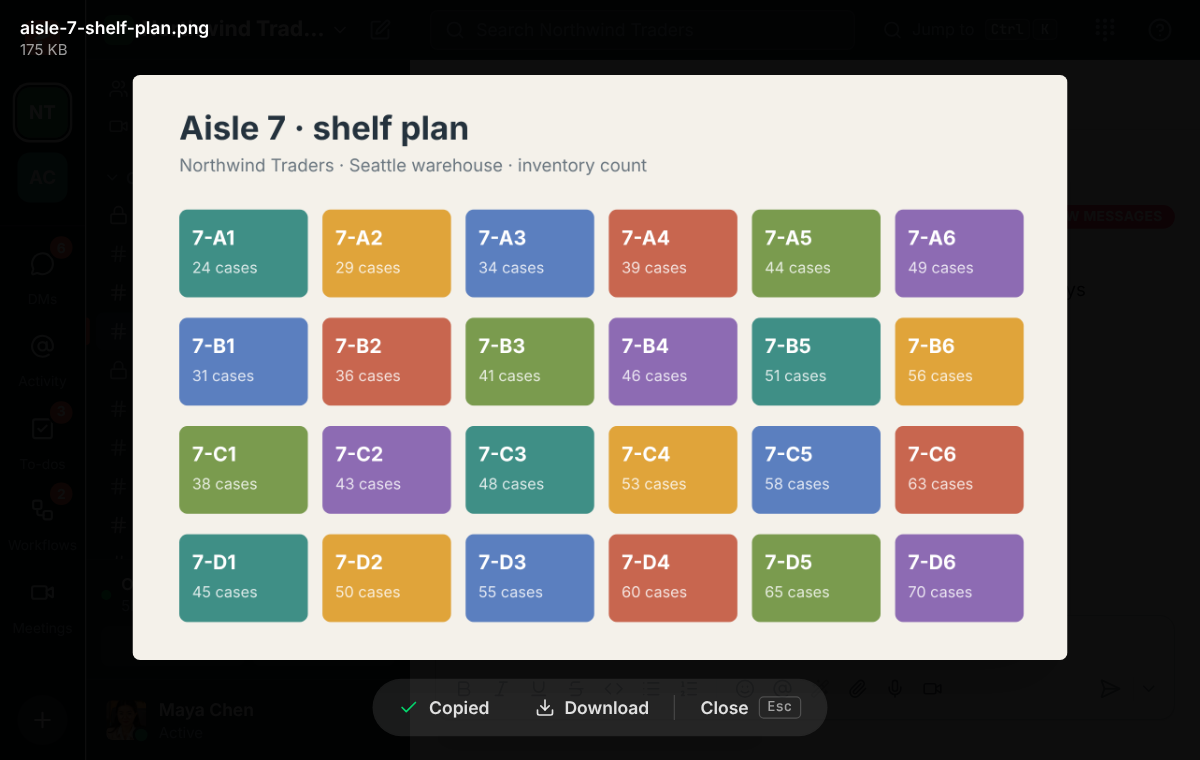
Images show a preview; click one to see it full size, with Copy, Download and Close in a bar at the bottom. Press Esc or click beside the picture to close it, and use the arrow keys to move between pictures in the same message. Videos and audio files play right in the conversation.
Copy puts the picture itself on your clipboard, so you can paste it into an email, a document or another app without downloading it first. An animated GIF pastes as its first frame. You can also right-click a picture or file in a message for Open, Copy image and Download (see Right-click menus). Full size, right-click the picture and pick Copy image in the browser or Copy Image in the desktop app, which also offers Save Image As… and Copy Image Address.
Open PDFs, text and spreadsheets without downloading
Section titled “Open PDFs, text and spreadsheets without downloading”Click the name of a PDF, a text or code file, or a CSV spreadsheet to open it right in Freesbe, in the same dark viewer as pictures. PDFs show their pages (the first 30; download the file for the rest), CSV files show as a table, and text and code show as they are. Very large text files show their first 512 KB. Download and Close sit at the bottom; press Esc to close. Other files, like Word or PowerPoint documents and zip files, download when you click them.
Files tab
Section titled “Files tab”Every channel and DM has a Files button at the top, next to the canvas. It opens a list of everything shared in that conversation, in threads too, newest first, with who shared each file, when and how big it is.
- Type part of a name to find a file, and pick Images, Documents, Video and audio or Other to see just those.
- Click a file to open it: pictures and the files above open in the viewer, the rest download.
- Show in conversation jumps to the message the file came with, opening its thread when it was shared in one. The download button saves the file.
When a message is deleted, its files leave the list too.
Audio and video clips
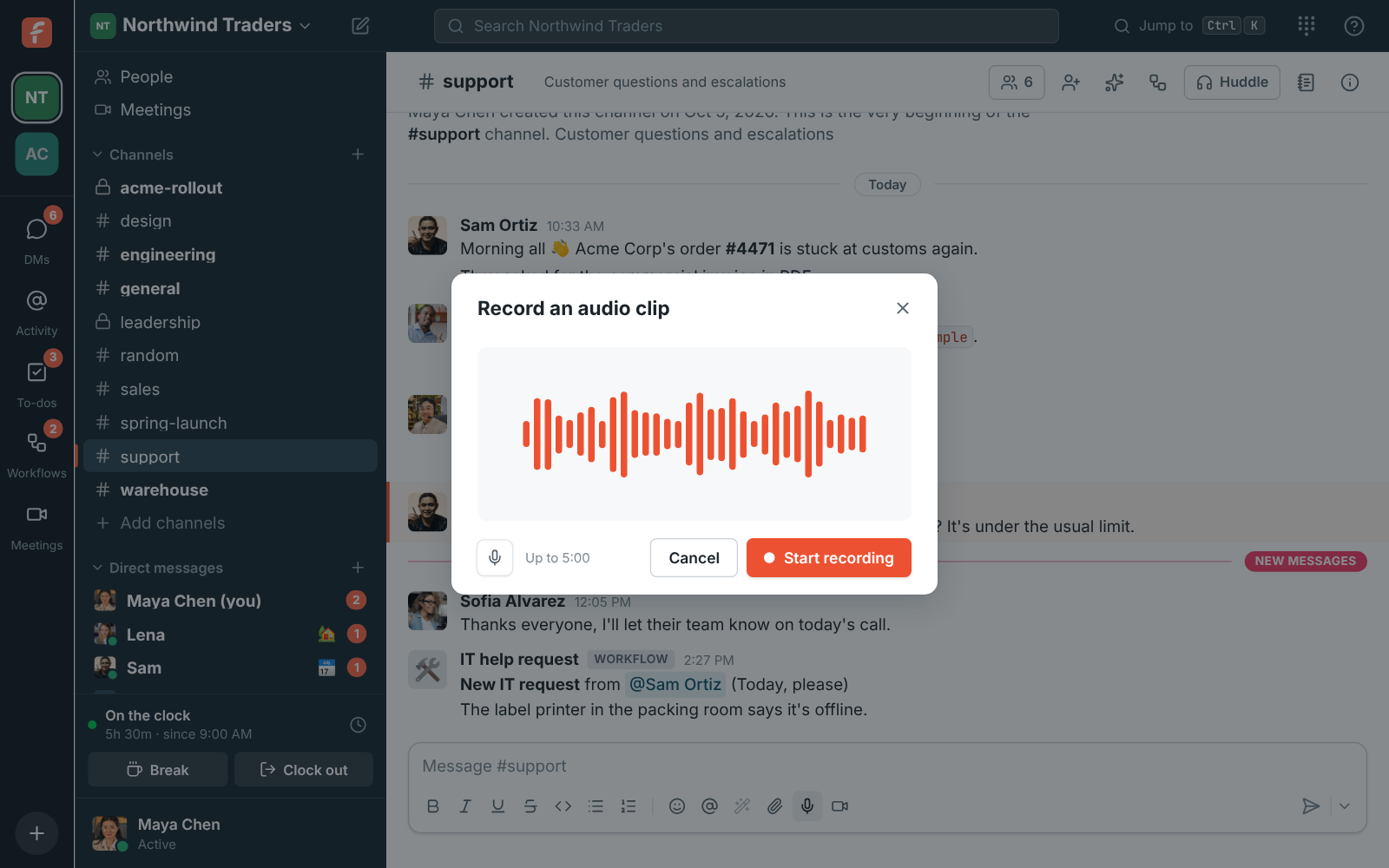
Section titled “Audio and video clips”Sometimes it’s quicker to say it than to type it. Record a short clip straight from the message box and it’s sent like any other file, with a player in the conversation.
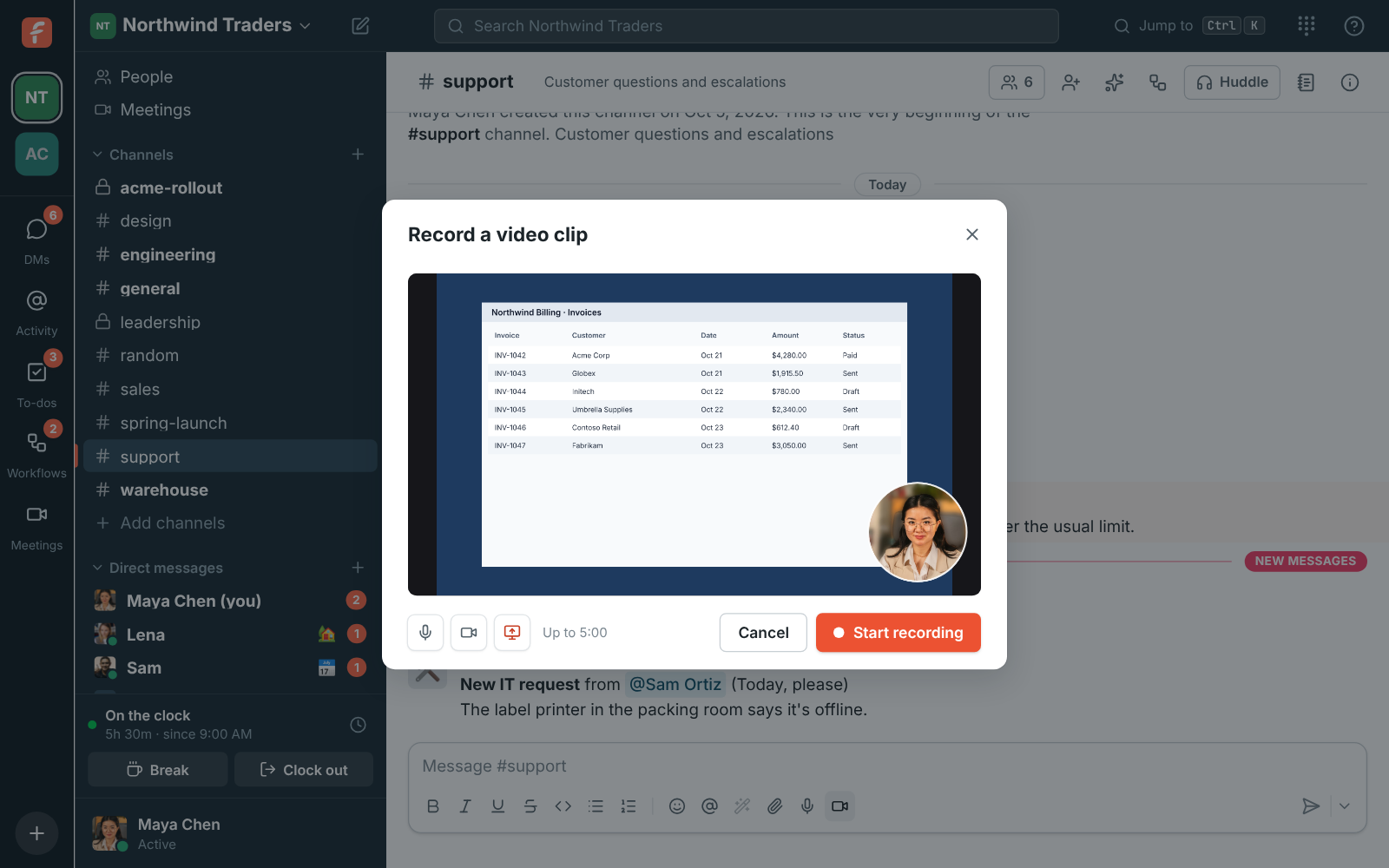
- Click the microphone (audio clip) or the video camera (video clip) under the message box.
- For a video clip, your camera turns on. Click Share screen to record a screen or window instead, with your camera in a circle in the corner, or turn the camera off to record just the screen. You can mute the microphone, switch the camera and start or stop sharing while you record.
- Click Start recording, and Stop recording when you’re done. A clip can be up to 5 minutes long.
- Watch or listen to it back. Record again throws it away and starts over; Add to message attaches it to the message box, where you can add a note before you send it.
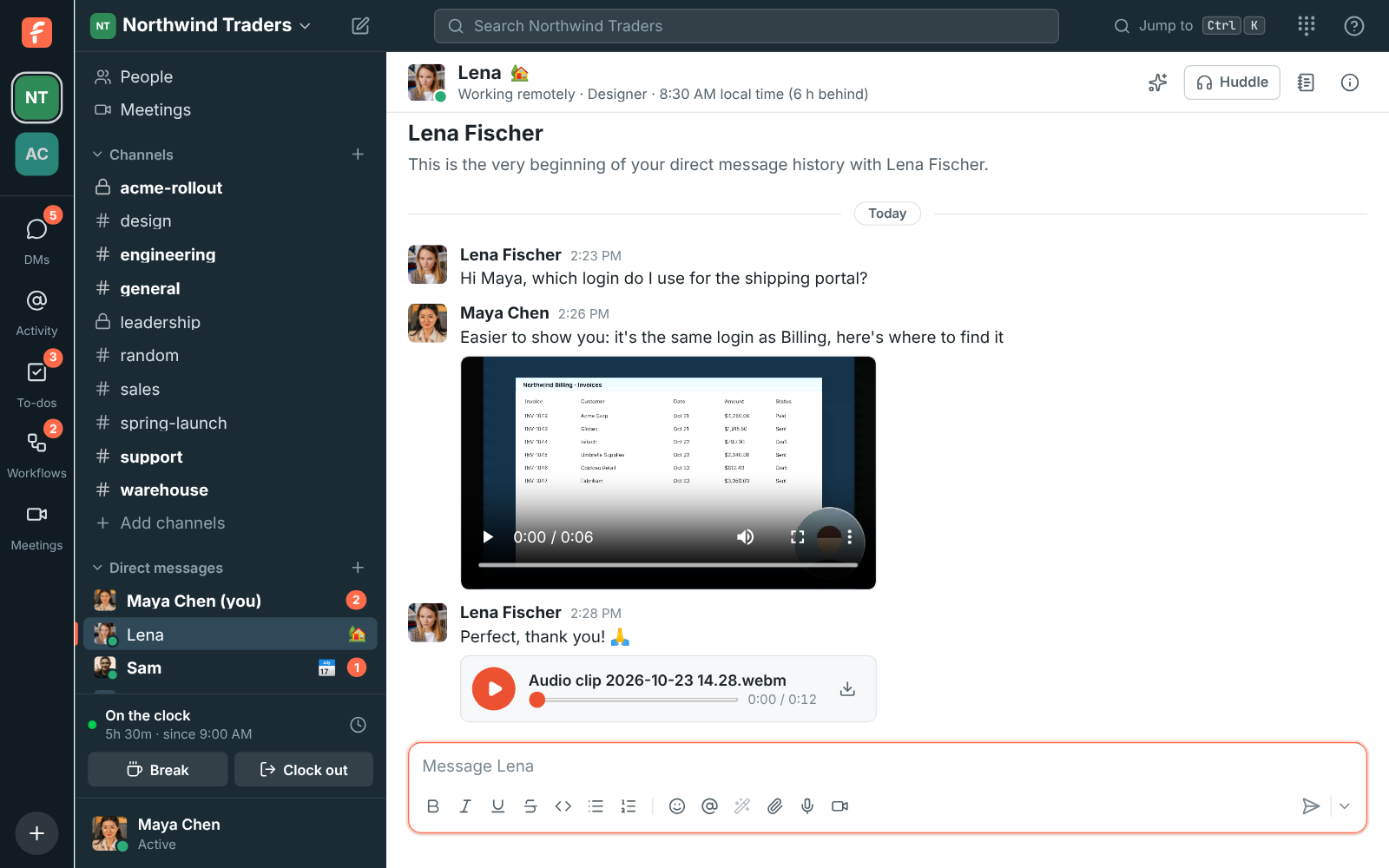
Clips play in the conversation for everyone in it: audio clips with a play button and a bar to jump around, video clips in a player with full screen. Only one audio clip plays at a time.
Good to know:
- Clips are recorded in your browser or the desktop app, and nothing is sent until you add the clip to a message and send it. Closing the dialog throws the recording away.
- Clips are named by when you recorded them, such as
Video clip 2026-10-23 14.05.webm, and count towards your workspace’s storage like other files. - The first time, your browser or computer asks to let Freesbe use your microphone and camera. If you said no, allow it in the browser’s site settings (or, on a Mac, System Settings → Privacy & Security) and try again.
- Workspaces that don’t allow audio and video files under File types can’t record clips either.
Schedule a message
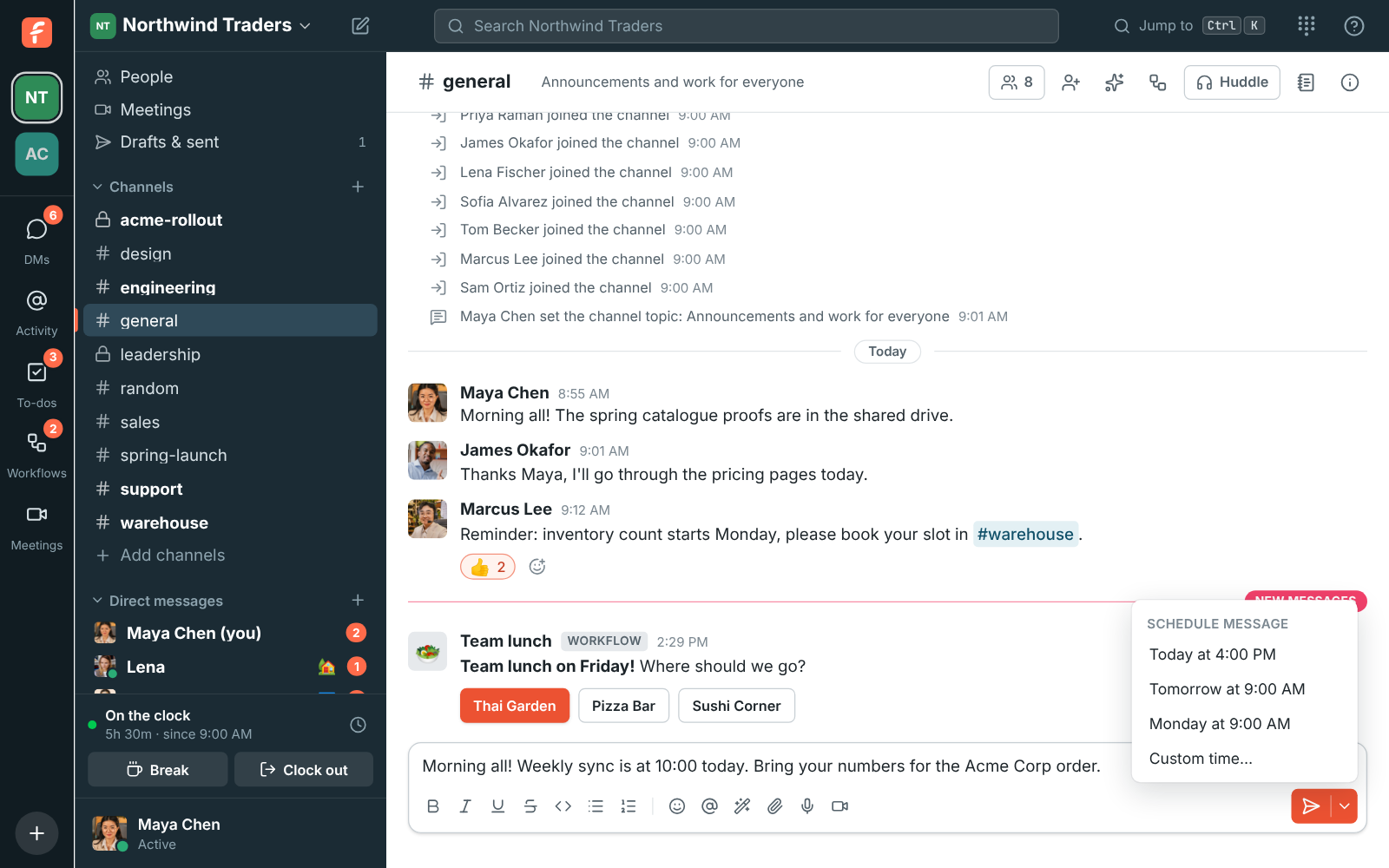
Section titled “Schedule a message”Write a message now and have it go out later, for example at the start of someone’s day. Type it as usual, then click the arrow next to Send and pick a time: later today, tomorrow morning, Monday morning, or Custom time… for any date and time up to 120 days ahead. It works in channels, DMs and threads, with files too.
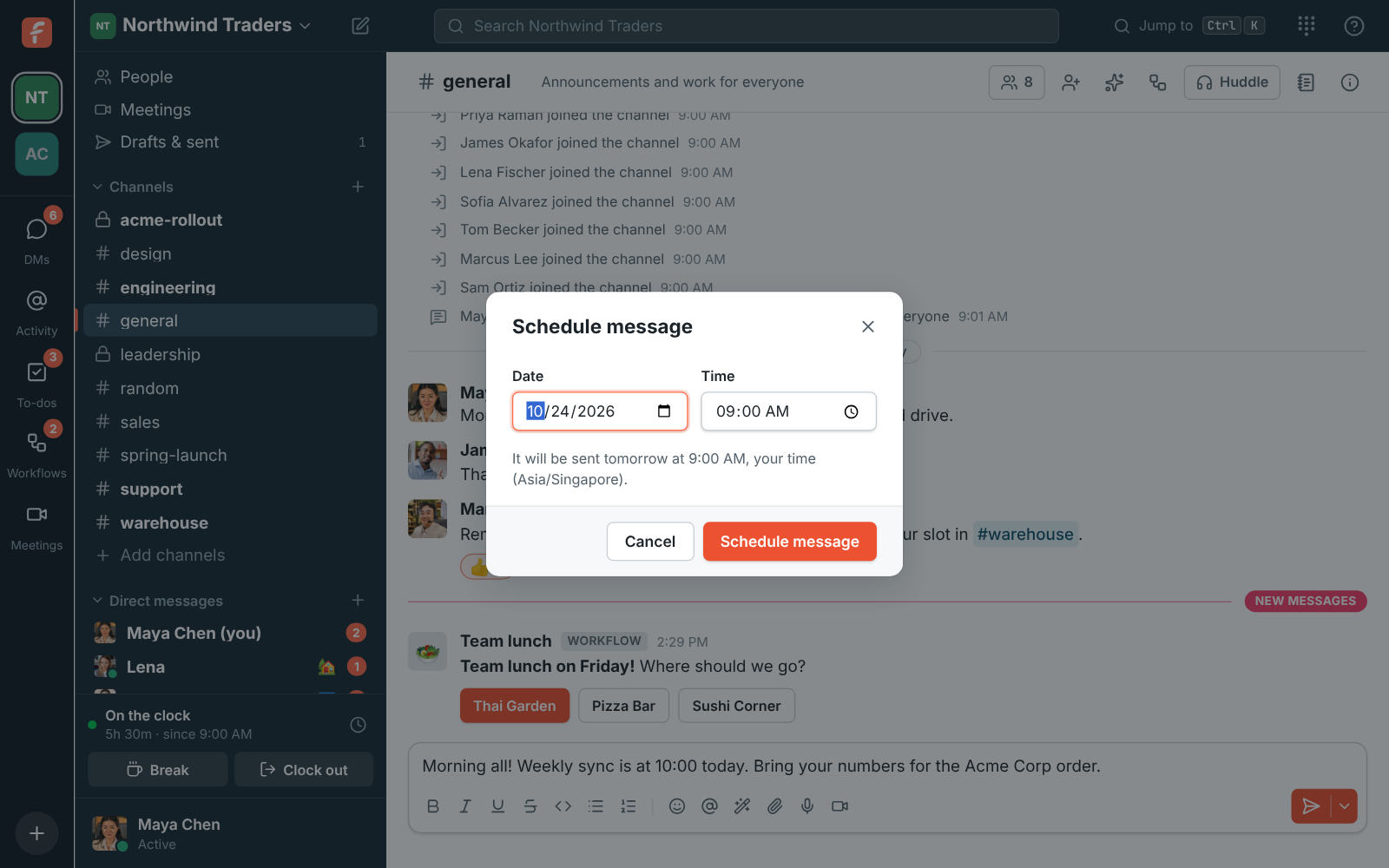
Custom time… asks for a date and a time. Times are in your own time zone, shown under the fields.
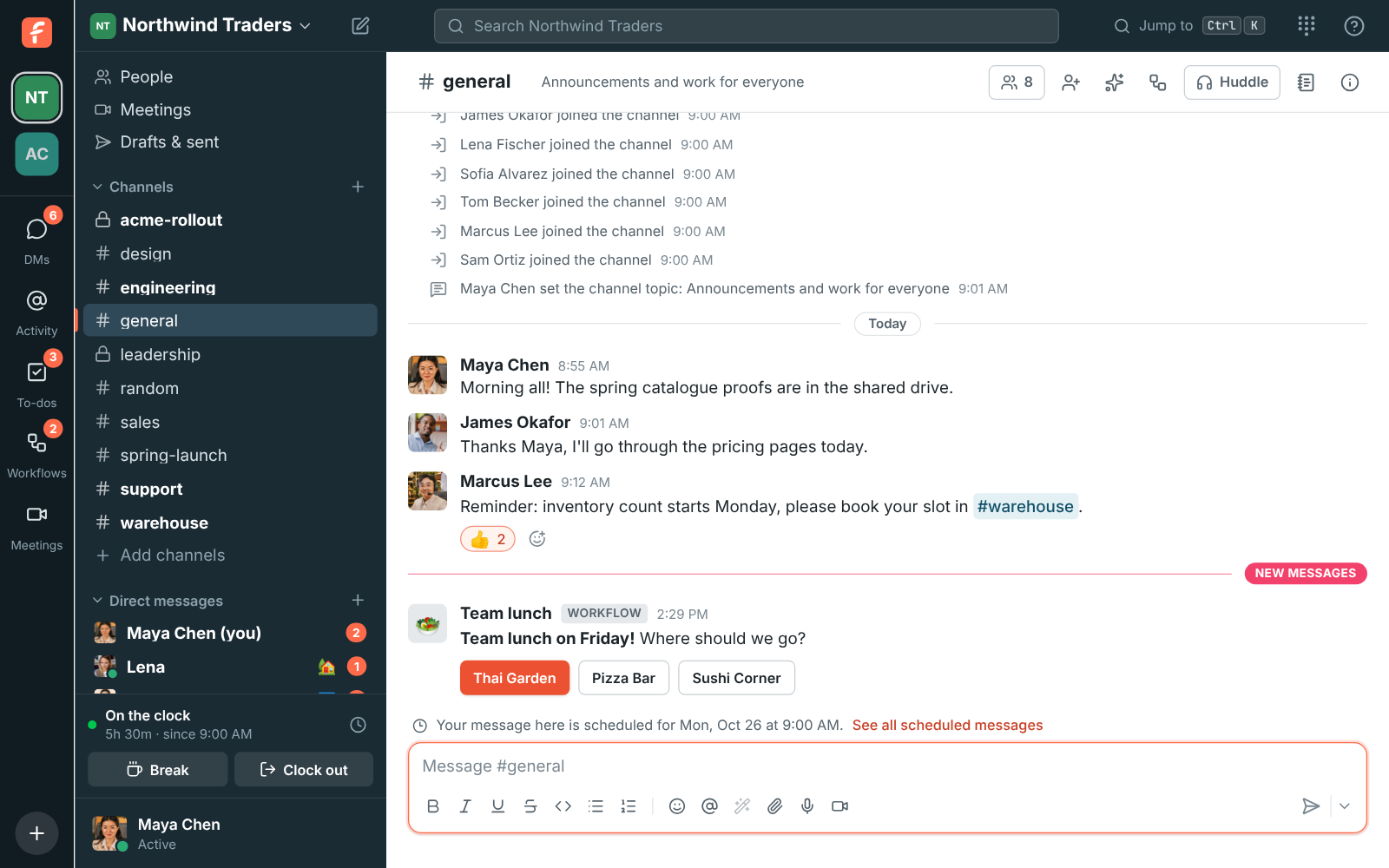
Until it goes out, only you can see a scheduled message. A note above the message box tells you when a conversation has one waiting, and the Scheduled tab of Drafts & sent shows how many you have.
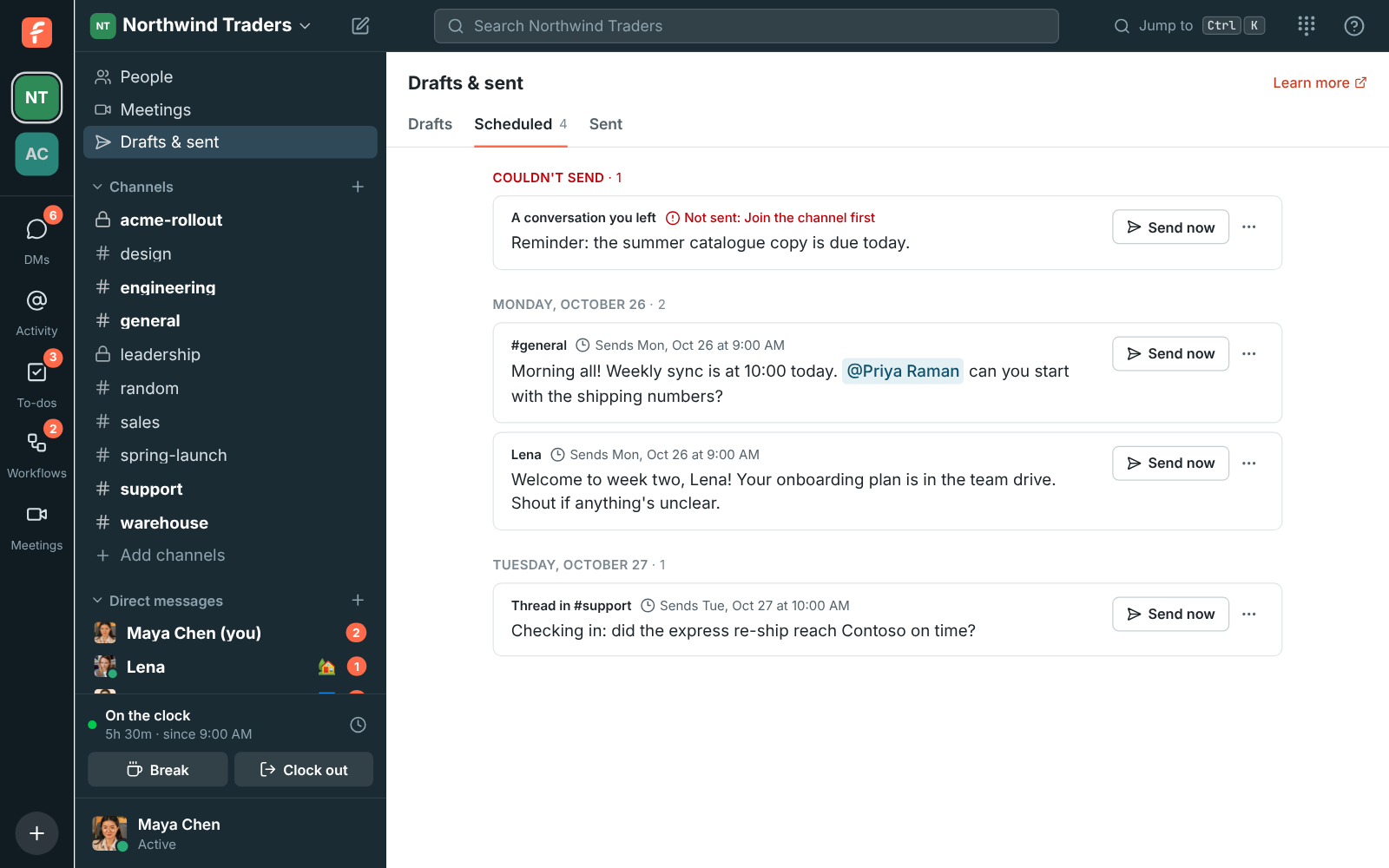
Open Drafts & sent → Scheduled to see them all, soonest first. On each one you can:
- Send now, to post it straight away.
- ⋯ → Reschedule to a quick pick or a custom time.
- ⋯ → Edit message to change the words.
- ⋯ → Open conversation, or ⋯ → Delete so it never goes out.
Good to know:
- The message is sent by Freesbe at its time, so your computer can be off. It appears as if you’d just sent it, and people are notified as usual.
- If it can’t be sent, for example because you left the channel or it was archived, it stays on the page under Couldn’t send with the reason. Pick a new time to try again, or delete it.
- You can have up to 100 messages scheduled in a workspace.
- In the mobile app, press and hold Send to schedule, and find your scheduled messages under You → Drafts & sent. See The mobile app.
Drafts
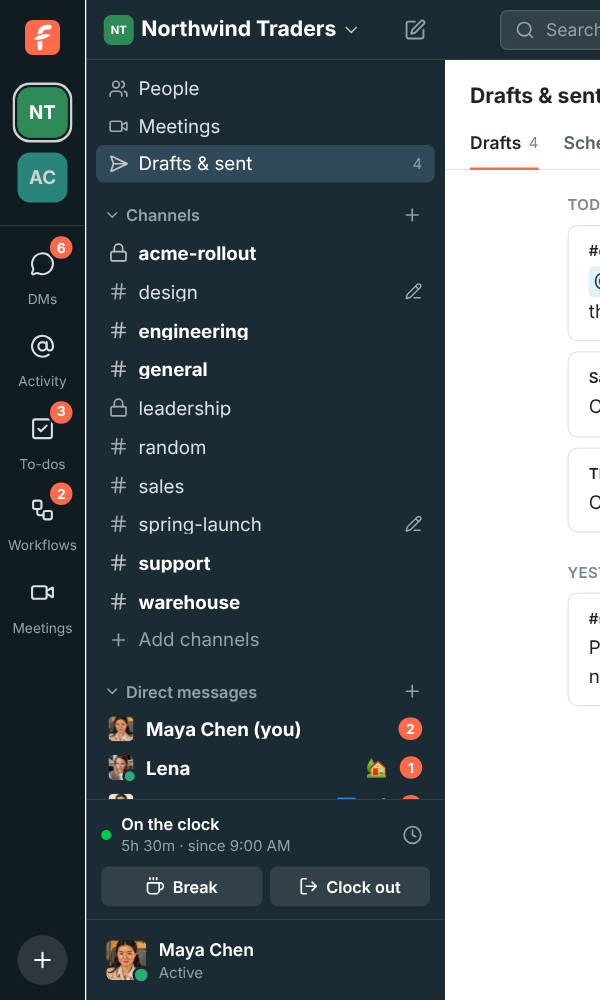
Section titled “Drafts”Anything you type and don’t send stays as a draft for that conversation or thread. Switch away, close the tab or quit the app, and it’s waiting in the box when you come back. Drafts are kept for your account, not just the device, so a message you start on your computer is there on your phone too, and the other way round. Conversations with a draft show a pencil in the sidebar.
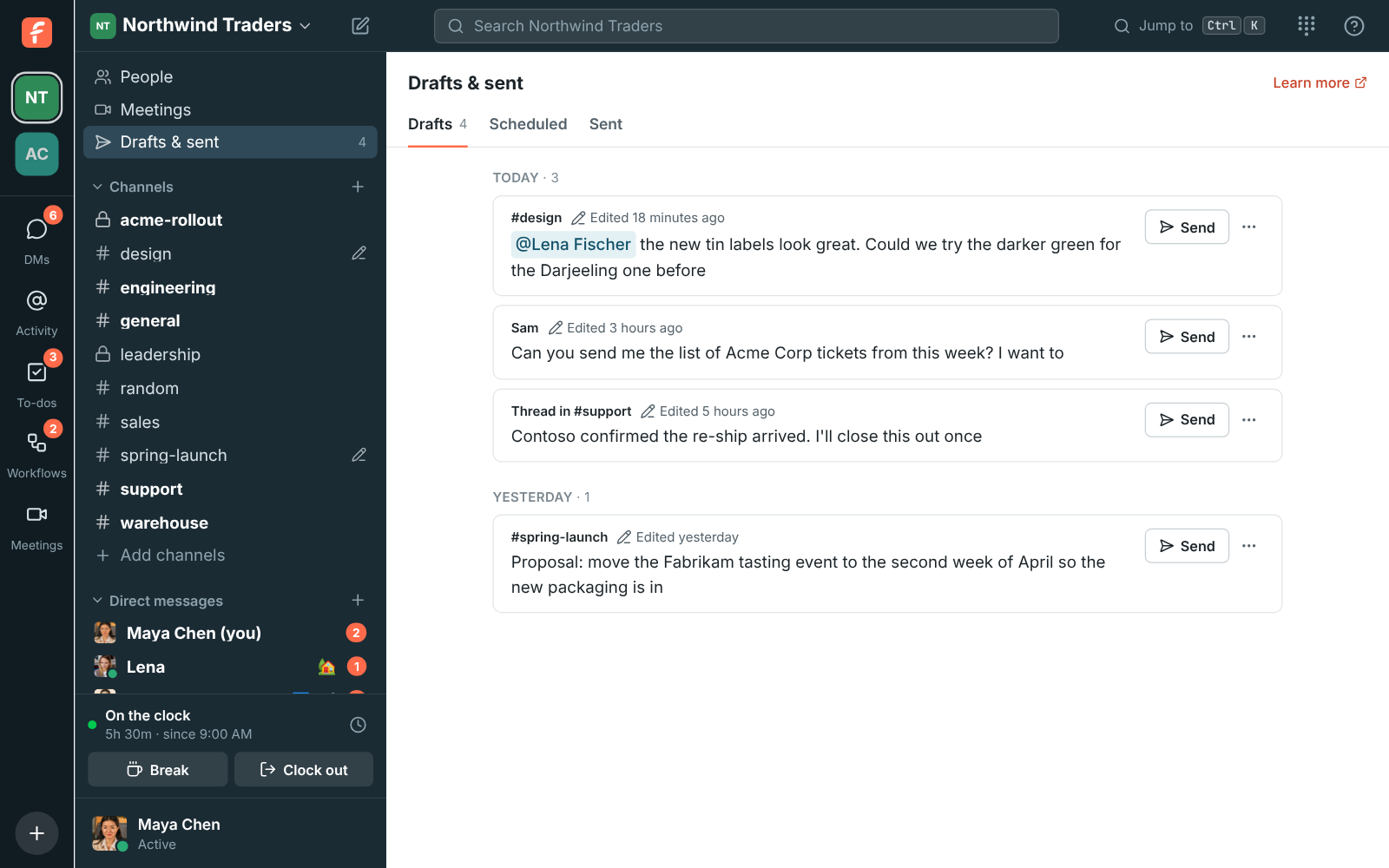
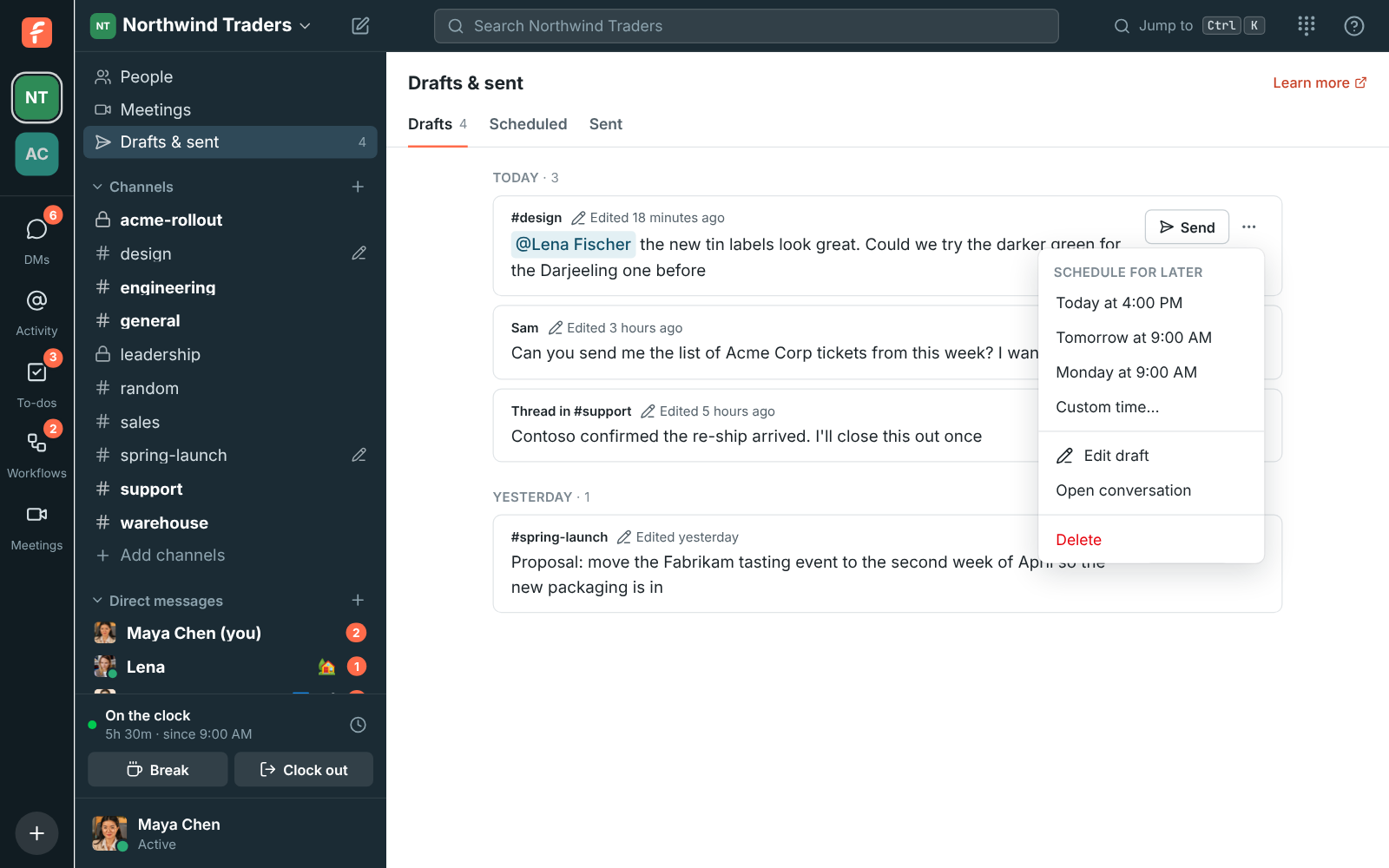
The Drafts tab of Drafts & sent lists them all, newest first, grouped by the day you last worked on them. On each one you can:
- Send, to post it straight away.
- Click it, or ⋯ → Open conversation, to finish it in the message box.
- ⋯ → Edit draft to change the words right there.
- ⋯ → Schedule for later: a quick pick or Custom time… turns it into a scheduled message.
- ⋯ → Delete to throw it away on every device.
Good to know:
- Only you can see your drafts.
- Drafts sync as you type, a moment after you stop. Typed while offline, they go up when you’re back online.
- Each workspace keeps up to 200 drafts. When there are more, the oldest make room.
- Signing out forgets the drafts on that device; they stay on your account for next time.
- In the mobile app, find them under You → Drafts & sent. See The mobile app.
Drafts & sent
Section titled “Drafts & sent”Drafts & sent, under Meetings at the top of the sidebar, keeps everything you’ve written in one place, with a tab for each:
- Drafts: messages you started and haven’t sent, on any of your devices. See Drafts.
- Scheduled: messages waiting to go out later. See Schedule a message.
- Sent: your own messages and replies, newest first, grouped by day. Click one to jump to it in its conversation or thread. Show older goes further back.
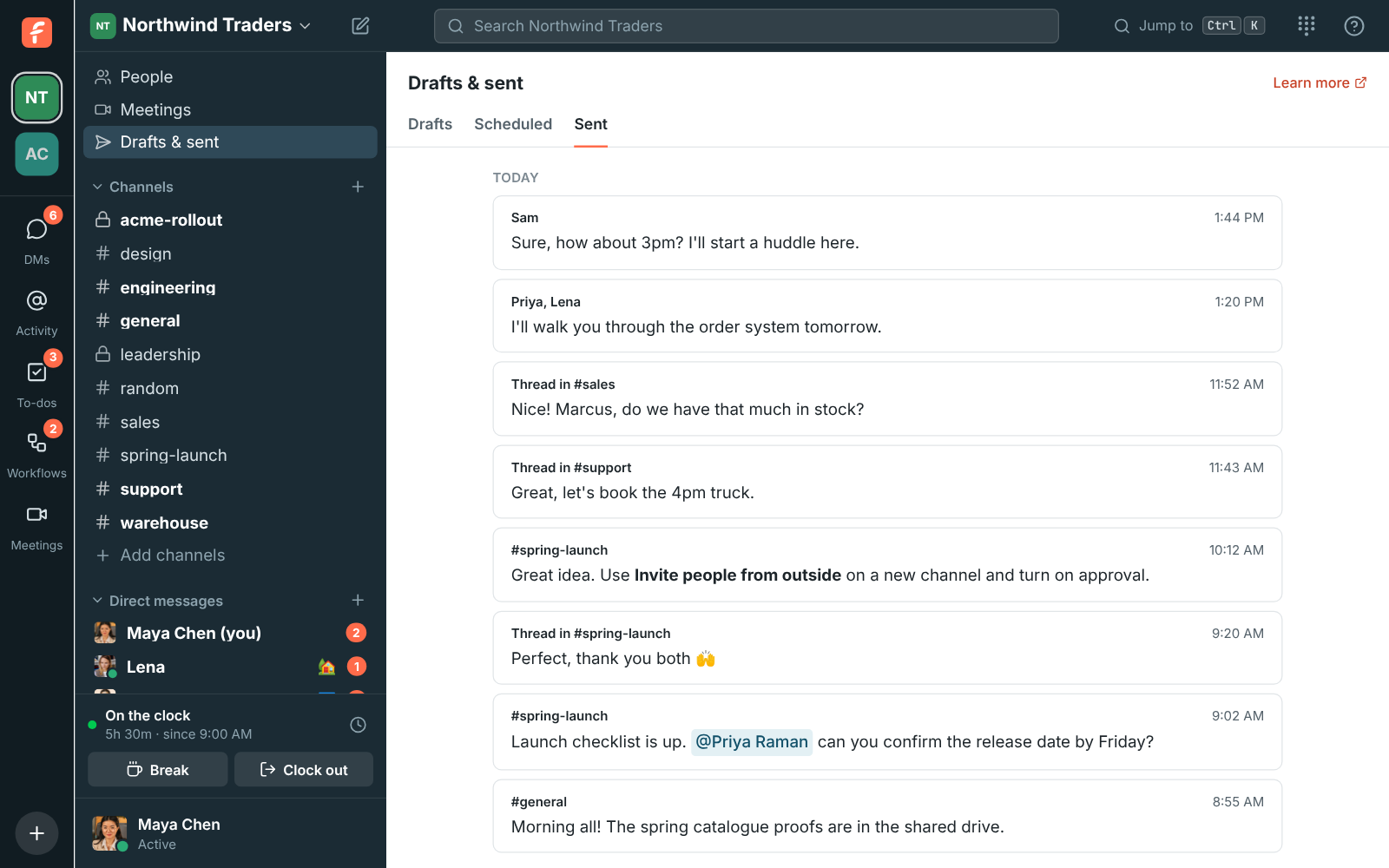
Sent only shows conversations you’re still in, and deleted messages drop off it. Old links to the Scheduled and Drafts pages open the matching tab.
Threads, reactions, edits and deletes
Section titled “Threads, reactions, edits and deletes”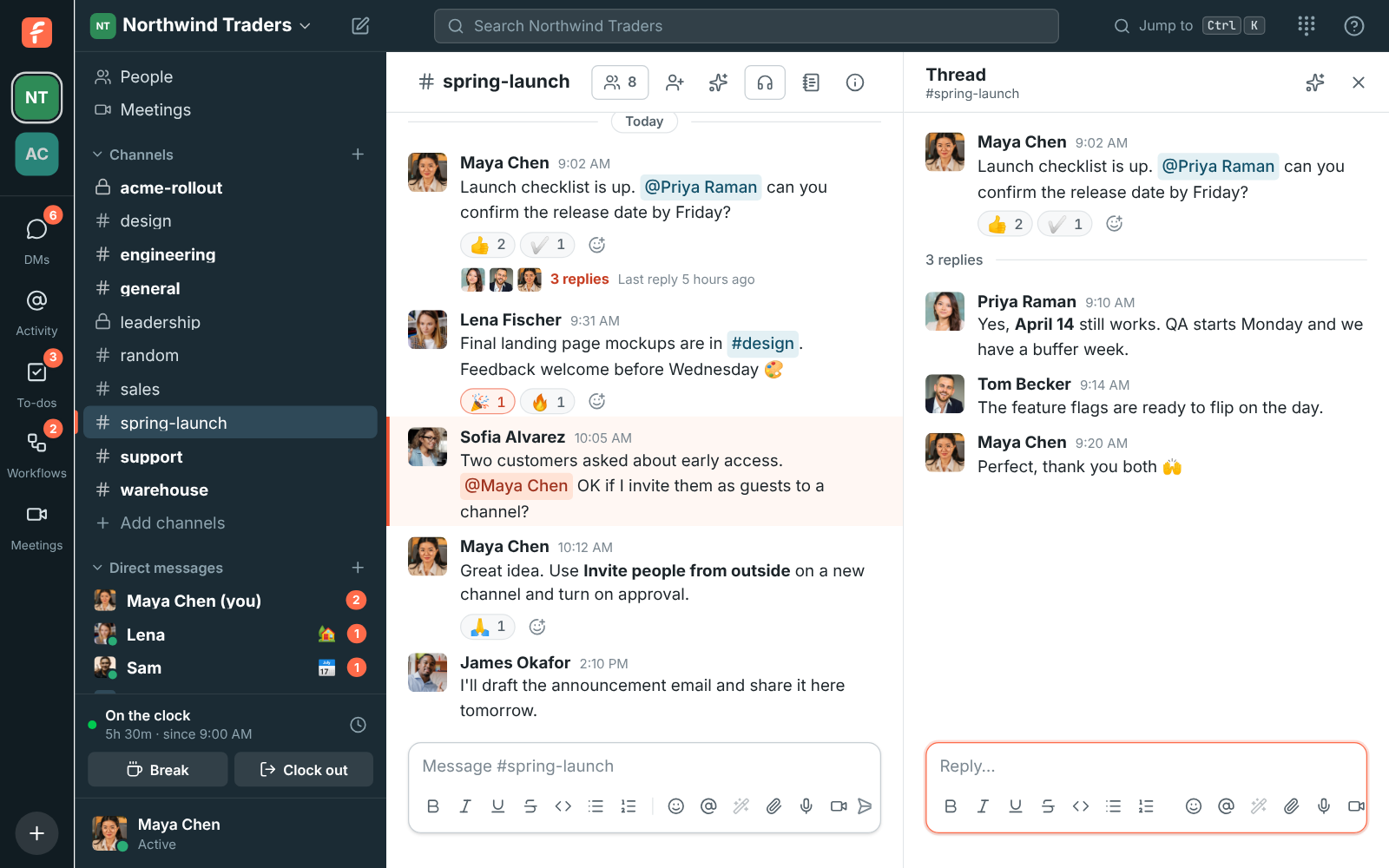
Hover over a message (or tap it) to see its actions:
- Reply in thread keeps a side conversation out of the main channel. Threads open in the right pane, and the message shows how many replies it has. You’re notified of replies in threads you started or replied in.
- Add reaction opens the emoji picker. It stays open, so you can leave several reactions in one go. The ones you’ve already left are highlighted, and clicking one again takes it away. Click Done, press Esc or click outside when you’re finished. Click a reaction under a message to add yours, click it again to remove it.
- Edit message changes your own message. Pressing ↑ in an empty message box edits your last message. Your admins can limit how long after sending you can edit, or turn editing off.
- More actions → Forward message sends a copy to another channel or person. See Forward a message.
- Save for later (the bookmark) keeps the message in Later for you to come back to, and More actions → Remind me about this does the same with a reminder. See Save for later and reminders.
- More actions → Copy link copies a link straight to the message.
- More actions → Pin to this conversation keeps the message at hand for everyone in it. See Pins and bookmarks.
- More actions → Delete message removes your own message, after you confirm. If your admins turned that off, only they can delete messages.
Right-click menus
Section titled “Right-click menus”Right-click a message for everything you can do with it in one place, in the browser and in the desktop app. It’s the same list as the buttons that show when you point at the message and its More actions menu, so you’ll always find an action in both:
- A row of quick reactions, and + for the full emoji picker.
- Reply in thread, Quote in reply (puts the message in your message box as a quote, below whatever you’d typed), Copy text and Copy link.
- Save for later, Remind me about this, Pin to this conversation, Forward message, Mark unread and Add to to-dos.
- Ask Freesbe about this and Translate, when AI is on, and any actions your apps add.
- Edit message and Delete message on your own messages.
What’s under the pointer comes first:
- Selected text: Copy, Quote selection, Ask Freesbe about it and Search for it.
- A link: Open link and Copy link address.
- A picture or file: Open, Copy image (pictures) and Download.
- Someone’s name, picture or @mention: View profile, Send a message, Start a huddle and Copy email address.
Right-click a channel or DM in the sidebar for Mark as read, Mute (or Unmute), Copy link, Notification settings, Move to one of your sections and Leave.
The message box keeps your browser’s own menu, so spelling suggestions, cut, copy and paste work as always; in the desktop app that’s its spelling and editing menu. Hold Shift while you right-click anywhere to get the browser’s menu instead. Menus open to the left in right-to-left languages, and the keyboard’s menu key or Shift+F10 opens them on the message you’re on.
Deleting someone else’s message (admins)
Section titled “Deleting someone else’s message (admins)”Workspace owners and admins can delete anyone’s message when something needs to go: hover over it, open More actions and choose Delete message. It works on messages, thread replies and app messages, in public channels (even ones you haven’t joined) and in private channels you’re in. DMs stay between the people in them, so admins can only delete their own messages there.
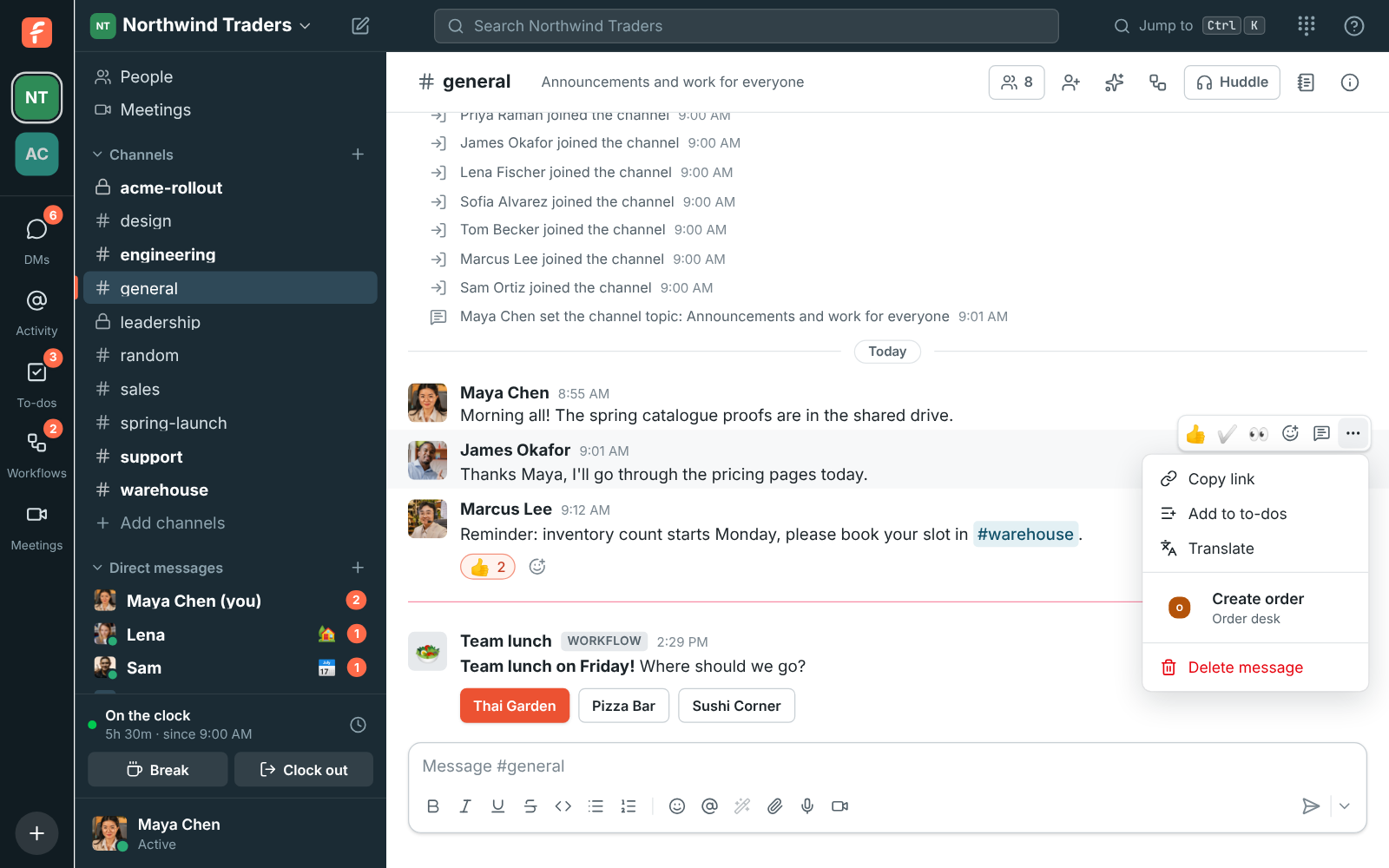
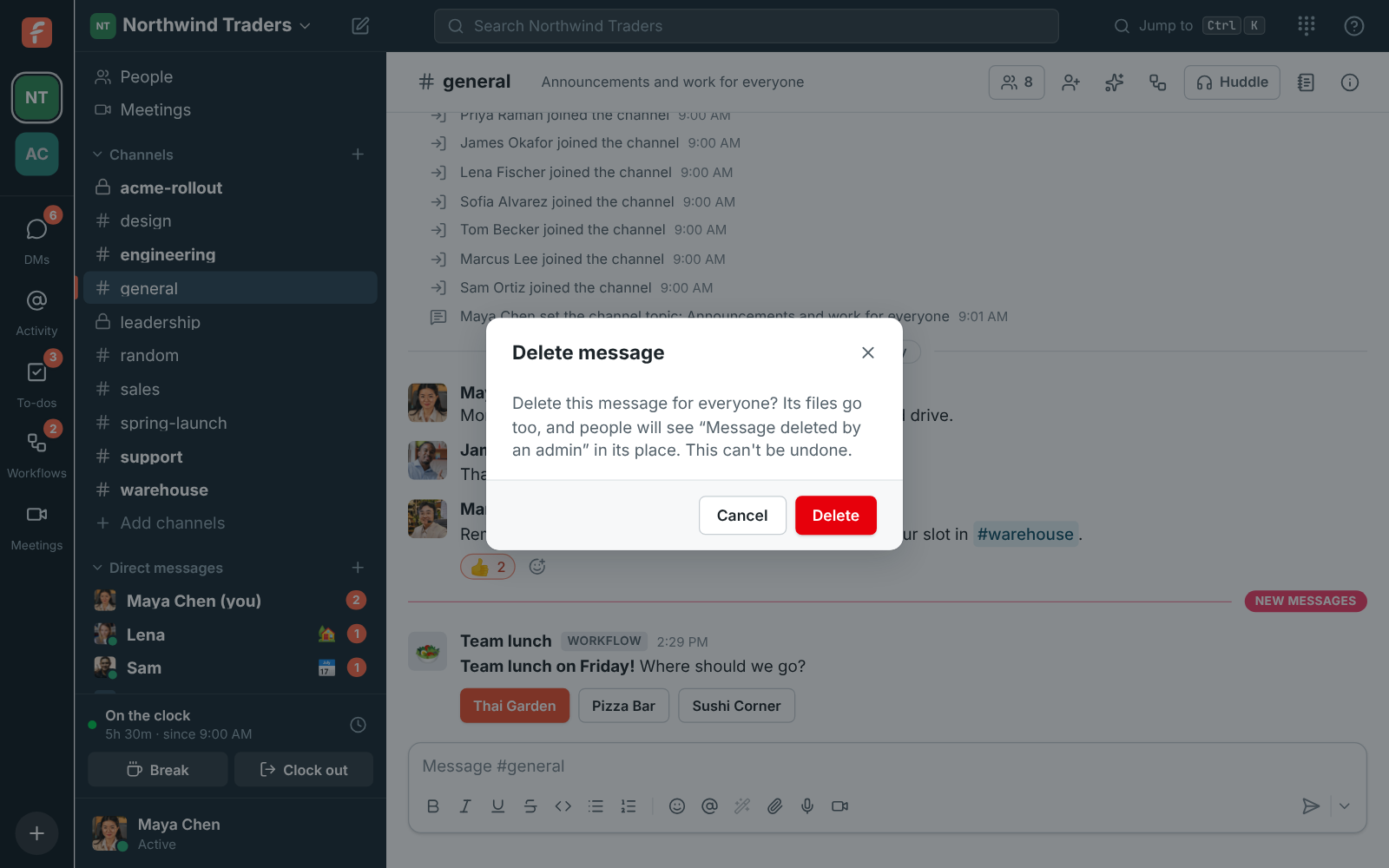
Freesbe asks first. The message, its files and its reactions are deleted for everyone, for good.
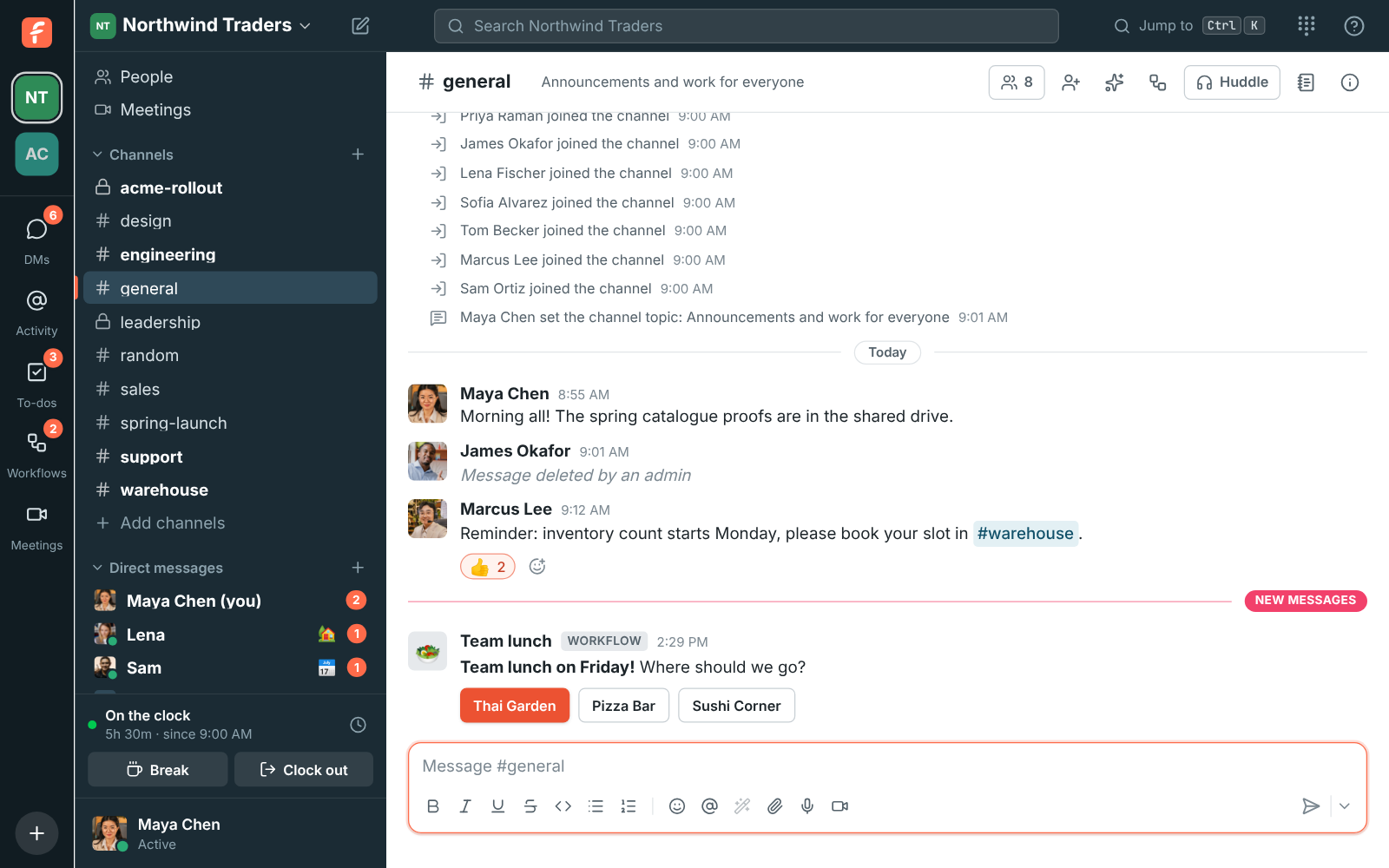
In its place, everyone sees Message deleted by an admin, so the conversation around it still makes sense, and replies to it stay where they are.
Each deletion is logged in Workspace settings → General → Messages, with who deleted it, whose it was, where and when. Admins can also turn this off there. See Messages.
Pins and bookmarks
Section titled “Pins and bookmarks”Every channel and DM has a strip under its name for what people come back to: pinned messages and bookmarked links. Everyone who can read the conversation sees them, and everyone who can write in it can change them.
Pin a message
Section titled “Pin a message”Hover over a message, open More actions and choose Pin to this conversation. The message gets a Pinned by line, and the strip under the conversation’s name counts its pins. Click 2 pinned (or however many there are) to see them all beside the conversation, newest first. Click one to jump to it, or point at it and click the unpin button.
To unpin from the message itself, open More actions again and choose Unpin from this conversation. A conversation holds up to 100 pins, and a pin goes when its message is deleted.
Bookmark a link
Section titled “Bookmark a link”Click Add a bookmark in the strip, paste a link and, if you like, give it a name. Without one, the link’s address names it. Bookmarks open in your browser. Point at one and click the small arrow next to it to edit it, move it left or right, or remove it. A conversation holds up to 50 bookmarks.
Forward a message
Section titled “Forward a message”To pass a message on, point at it, open More actions and choose Forward message. Search for a channel, a group DM or a person, add a few words of your own if you like, and click Forward. You can forward to conversations you’re in, and to anyone in the workspace.
The copy shows who wrote the original, where and when, with View original to jump to it. People who can’t see the original conversation still see the copy, but not the conversation it came from. Files stay in the original conversation: the copy lists their names. Forwarding a forwarded message without adding anything passes the original on.
Save for later and reminders
Section titled “Save for later and reminders”Later, in the sidebar under Drafts & sent, keeps the messages you want to come back to. Only you see it, on all your devices.
- Save a message: point at it and click the bookmark. It shows Saved for later above it. Click the bookmark again to take it out.
- Get a reminder: open More actions → Remind me about this and pick In 20 minutes, In 1 hour, In 3 hours, later today, tomorrow or Monday, or Custom… for any date and time. The message goes into Later with its reminder.
- When the reminder goes off, Freesbe shows it in the app with a View button, plays a chime and sends a desktop notification, or a notification on your phone when you aren’t using Freesbe. Later in the sidebar shows how many reminders are waiting.
In Later, reminders that went off come first, then upcoming ones, then everything else, newest first. Click a message to jump to it. Point at one to mark it done (it moves to Completed), change its reminder, or remove it. Later holds up to 500 messages in progress. A message that was deleted, or that’s in a conversation you left, stays in the list without its text until you remove it.
Read receipts
Section titled “Read receipts”When your workspace’s admins turn read receipts on, you can see who has read what, like Seen in WhatsApp or Teams. They’re off until an admin turns them on in Workspace settings → General → Messages, either in DMs and groups of up to 20 people, or everywhere.
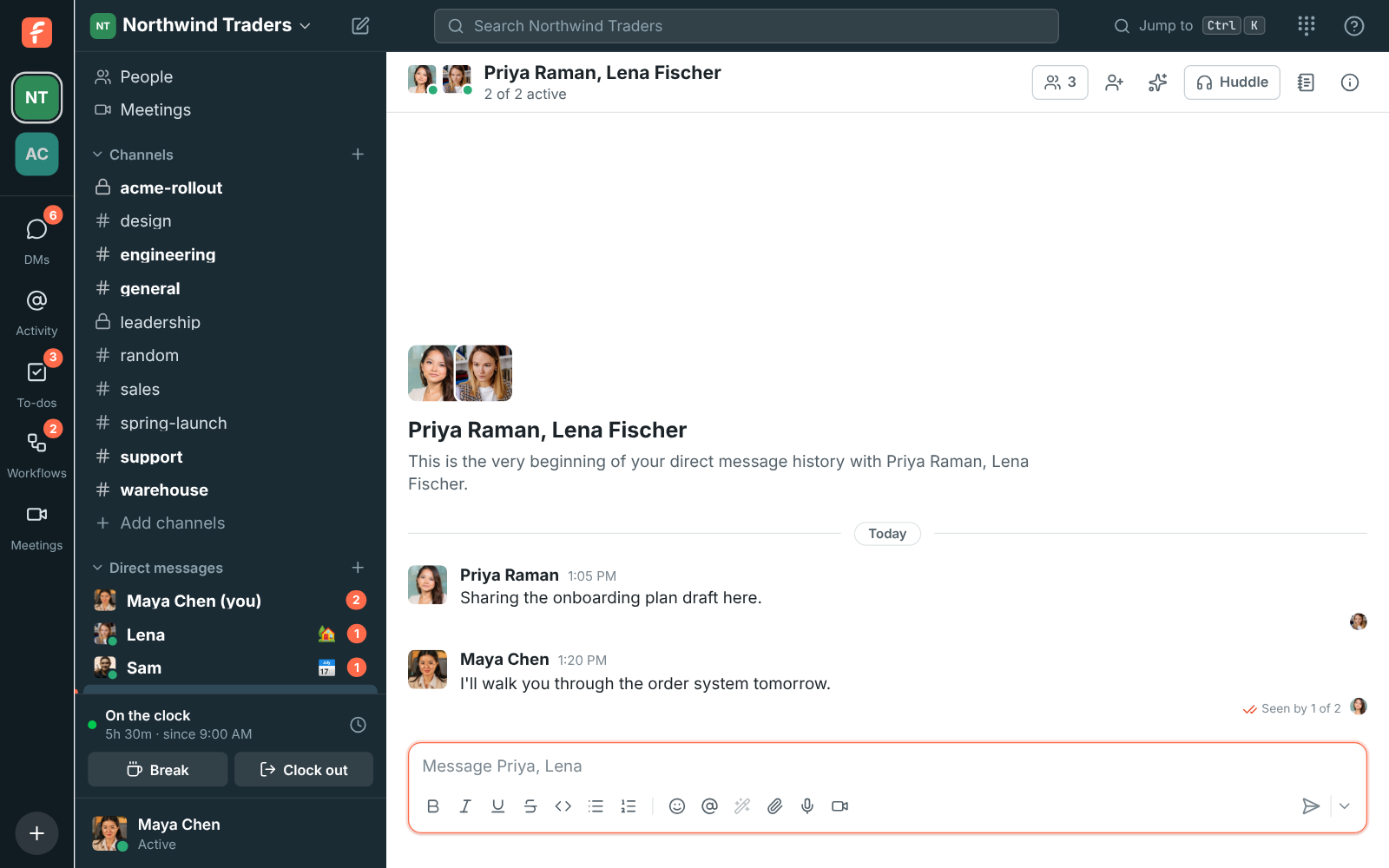
- A small picture of each person sits under the last message they’ve read. Hover over the pictures to see who they are.
- Under your newest message, Seen, Seen by everyone or Seen by 2 of 5 says how many of the others have seen it. Hover over it for their names.
- In a channel of more than 20 people (when receipts are on everywhere), you only see how many people saw your message, not who.
- It updates live, as people read. Posting a message counts as having read everything before it.
Turn your read receipts off
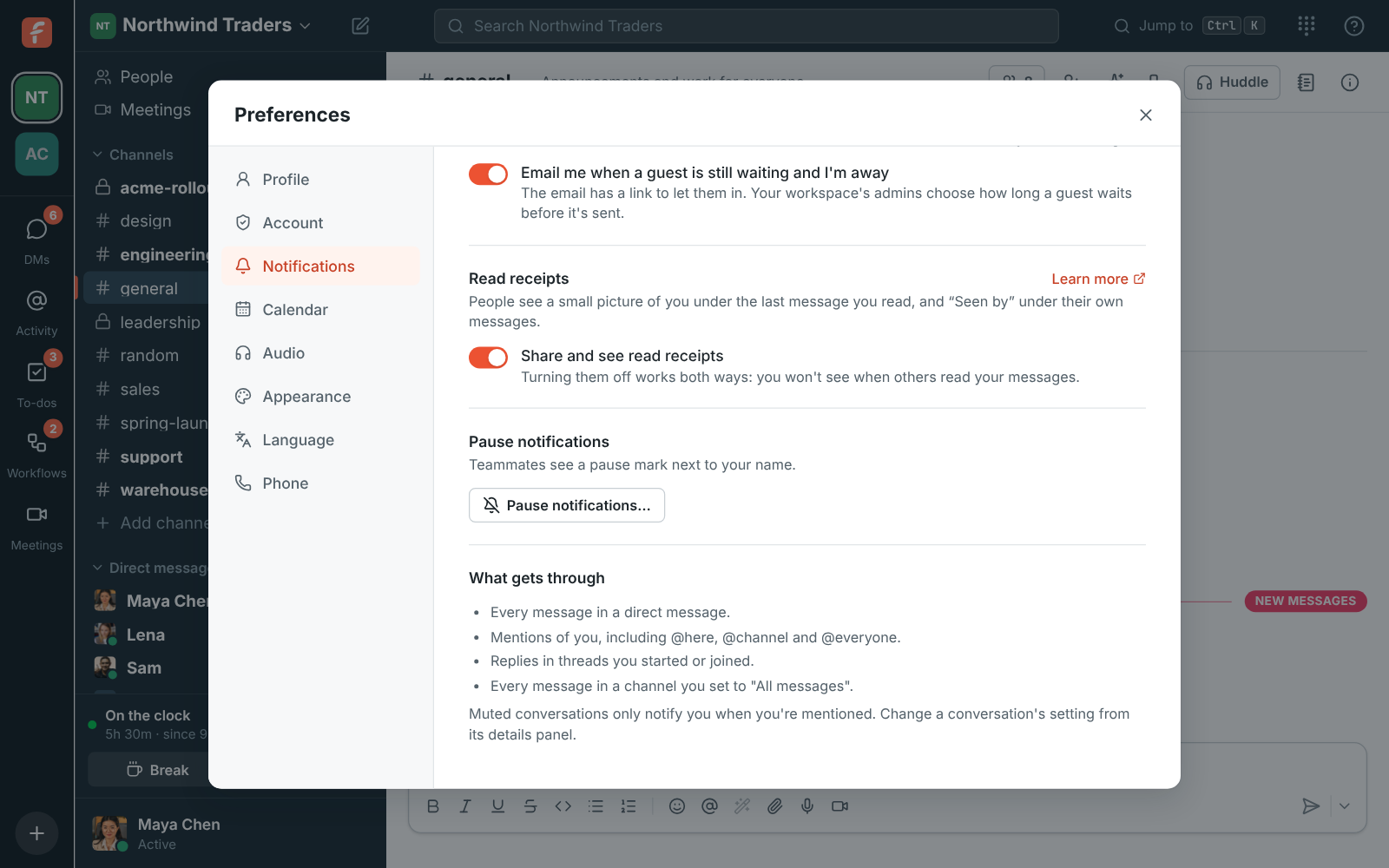
Section titled “Turn your read receipts off”If your admins let you choose, turn Share and see read receipts off in Preferences → Notifications, or Read receipts on the You tab of the mobile app. It works both ways: others no longer see how far you’ve read, and you no longer see who read your messages. Apps’ bots never show up in receipts.
Unread messages
Section titled “Unread messages”Conversations with new messages are bold in the sidebar, and a badge counts your mentions and DMs. A New messages line marks where you left off. What you’ve read is kept in step across all your devices.
To come back to something later, right-click a message (or open More actions) and choose Mark unread. The conversation turns bold again from that message on, on all your devices, and stays unread while you’re still looking at it. Right-click a conversation in the sidebar and choose Mark as read to clear it without opening it.
Answers come from the Freesbe guides and are written by AI, so check the linked guide before relying on one. Please don't include personal details such as emails or passwords.